
To reset smart light bulb, turn the bulb off and on six times consecutively. After the sixth time, the bulb should flash, indicating it’s in reset mode. Follow your specific brand’s instructions if this method doesn’t work.
Last updated: August 28, 2026
If your smart light bulb is malfunctioning, learning how to reset it can help restore its proper function. A reset often resolves connectivity issues and other errors you might encounter. This guide outlines the resetting process and offers solutions for common problems.
- Start with the setup: Device model, OS, ports, power needs, and workspace change the right answer.
- Check compatibility first: Verify specifications, drivers, firmware, app support, warranty, and return policy before acting.
- Use practical steps: Change one setting or product variable at a time so you can see what.
- Know the limits: Tech advice varies by model, brand, operating system, retailer, firmware version, and official support.
How to Reset a Smart Light Bulb: Step-by-Step Guide
Resetting a smart light bulb can vary by brand and model, but generally, the process involves cycling the power to the bulb in a specific manner. Follow these steps to reset your smart light bulb effectively. For related safety or troubleshooting context, you may also want to read how to factory reset kasa smart plug.
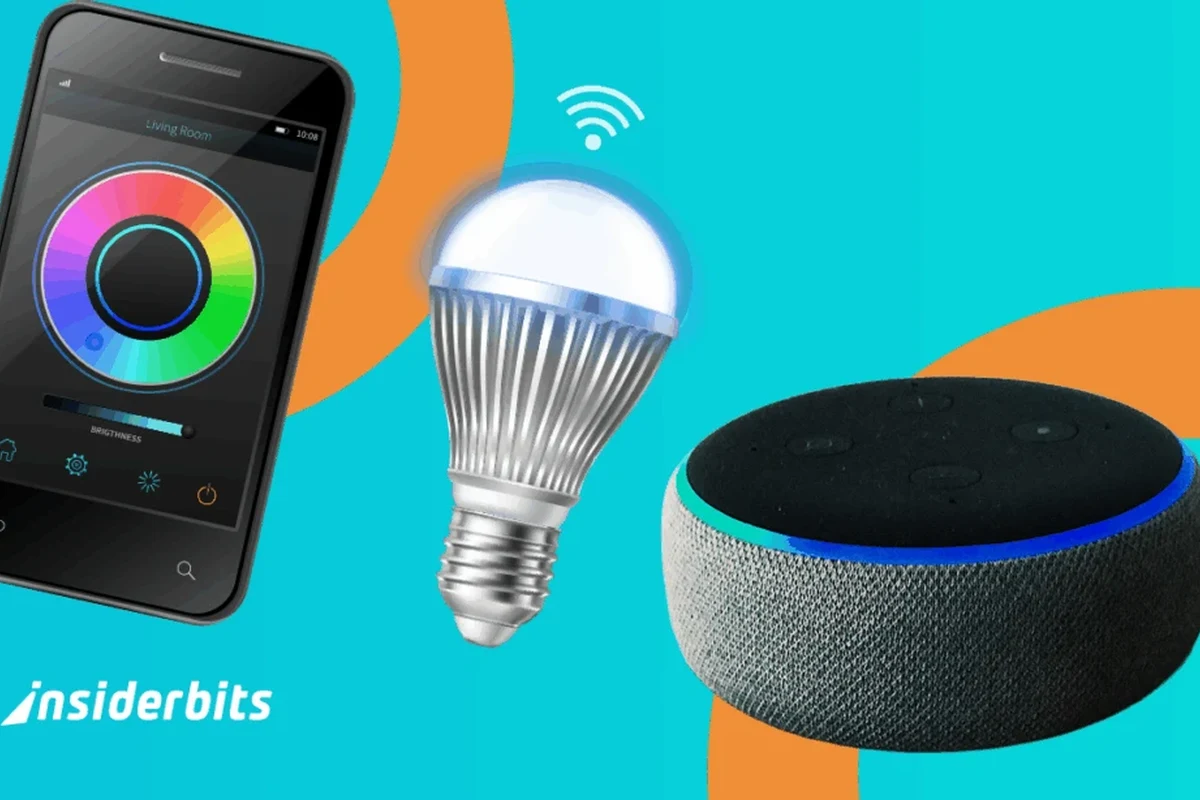
- Turn Off the Light
Begin by turning the light switch off. Wait for about 10 seconds before proceeding to the next step.
- Turn On the Light
Turn the light switch back on. This is usually where the resetting process starts.
- Cycle the Power
Turn the light switch off and on multiple times (usually 5-7 times). Each time you turn it on, leave it on for about 2 seconds before switching it off again.
- Wait for the Reset
After cycling the power, the bulb should flash or change color, indicating that it has been reset successfully.
- Reconnect to Your App
Open your smart home app and follow the instructions to add the bulb back to your network. Make sure to reconnect it to your Wi-Fi or Bluetooth.
Understanding Different Smart Bulb Brands and Their Reset Methods
Each brand of smart light bulb may have its own specific reset procedure. Familiarizing yourself with your brand’s method is important for effective troubleshooting. Below is a summary of popular brands and their general reset instructions.
Philips Hue
To reset a Philips Hue bulb, use the Hue app or a Hue Bridge. If using the app, select the bulb and choose the reset option. If using a Bridge, turn on the bulb and press the reset button on the Bridge.
TP-Link Kasa
For Kasa smart bulbs, turn the bulb off and on five times in quick succession. After the fifth time, the bulb will blink to confirm it has been reset.
Wyze Bulb
To reset a Wyze bulb, turn it off and on three times quickly. The bulb will flash to indicate that it has been reset and is ready for setup.
Amazon Echo Glow
For the Echo Glow, unplug the device, wait for about 10 seconds, and then plug it back in. Follow the app instructions to reconnect. This connects closely with how to factory reset wemo smart plug if you want to compare the topic in more detail.
Use this guide for how to reset smart light bulb as a practical checklist, then adjust the advice to your exact device model, operating system, workspace, and budget.
Common Issues That May Require a Smart Bulb Reset
Various issues can arise with smart bulbs that may require a reset to restore functionality. Common problems include connectivity issues, failure to respond to commands, or flickering lights, which can often be resolved by performing a reset. Recognizing these signs early can save you time and frustration. For related safety or troubleshooting context, you may also want to read how to reset feit smart plug.
- Connectivity Issues: If your bulb frequently disconnects from the network.
- Unresponsive Bulb: When the bulb does not respond to commands from your app or voice assistant.
- Color or Brightness Problems: If the bulb is displaying incorrect colors or brightness levels.
- App Compatibility: When the bulb fails to integrate with your smart home app.
| Issue | Possible Cause | Reset Needed? |
|---|---|---|
| Connectivity Issues | Weak Wi-Fi signal or interference | Yes |
| Unresponsive Bulb | Software glitch | Yes |
| Color Problems | Incorrect settings or app issues | Yes |
| App Integration Failures | Compatibility issues with the app | Yes |
Small details such as port type, charger wattage, firmware version, desk space, and app permissions can completely change the right answer.
Checking Compatibility: Which Devices Work with Your Smart Bulb?
Before resetting your smart light bulb, verify its compatibility with your existing devices. This step ensures that your smart home system operates without any hiccups. Confirming compatibility can save you time and frustration during the setup process.
Wi-Fi and Bluetooth Compatibility Considerations
Smart bulbs typically connect via Wi-Fi or Bluetooth. Ensure your router supports the specific frequency (2.4GHz is common for many devices) and that your smartphone or control device is compatible.
Smart Home Ecosystem Integration
Many smart bulbs are designed to work with specific ecosystems like Google Home, Amazon Alexa, or Apple HomeKit. Verify that your bulb integrates well with your existing smart home devices to avoid functionality issues. For related context, you may also want to read how to reset smart plug 2.
- Write down the exact error or behavior before changing settings.
- Test with another cable, port, or device when safe.
- Keep firmware, drivers, and apps updated from official sources.
Common Mistakes When Resetting Smart Light Bulbs
While resetting a smart bulb is generally straightforward, several common mistakes can hinder the process. Avoiding these pitfalls can lead to a successful reset.
Not Following Brand Instructions: Each brand has unique reset methods, so always refer to the manual. Insufficient Power Cycling: Failing to turn the bulb off and on the correct number of times may prevent a reset. Ignoring App Updates: Make sure your smart home app is up-to-date for compatibility. For related safety context, compare this with how to reset gosund smart plug.
Safety and Privacy Considerations for Smart Light Bulbs
When using smart light bulbs, consider the implications for safety and privacy. These devices connect to your home network and may gather user data. Being aware of how your smart bulbs operate can help you protect your personal information. This also connects with how to reset amazon smart plug if you want to avoid a similar setup or buying mistake.
- Network Security: Ensure your Wi-Fi network is secure with strong passwords to prevent unauthorized access.
- Firmware Updates: Regularly update the firmware of your smart bulbs to patch security vulnerabilities.
- Privacy Settings: Review the privacy settings in your smart home app to control what data is shared.
Use official support or warranty guidance if the issue involves overheating, power, damaged cables, unstable mounting, privacy risk, data loss, or repeated failures.
Official Support and Warranty Information
If resetting your smart bulb does not resolve the issue, consult the manufacturer’s support resources. It’s important to know your warranty terms for potential replacements. For buying or setup context, you may also want to read how to reset kasa smart plug 2.
When to Consider Replacing Your Smart Light Bulb
Sometimes, a reset may not be enough to restore functionality to your smart bulb. Here are signs that it may be time for a replacement.
Signs Your Smart Bulb Needs Replacement
Signs Your Smart Bulb Needs Replacement adds practical context to how to reset smart light bulb by focusing on the details that affect real setup and daily use. Check what applies to the current device, what needs verification, and which next step is safest before making another change.
Consistent Connectivity Issues: If the bulb repeatedly disconnects from the network after a reset. Physical Damage: Cracks or damage to the bulb can lead to malfunction. Inconsistent Functionality: If the bulb sometimes works and sometimes doesn’t, it may be faulty. This connects closely with how to reset smart plug if you want to compare the topic in more detail.
This guide on how to reset smart light bulb is written for general digital-information education. For specifications, compatibility, prices, availability, firmware/software versions, warranty terms, recalls, privacy settings, or safety limits, confirm details with the official manual, manufacturer page, retailer listing, warranty document, or current support notice before acting.
How to Use This Advice in Your Smart Home Setup
Applying the knowledge of how to reset smart light bulbs can enhance your overall smart home experience. Regular maintenance and understanding compatibility can help prevent issues before they arise.
Final Words
Understanding how to reset smart light bulbs is essential for maintaining a smooth-running smart home. By following the outlined steps and being aware of common issues, you can ensure your devices work as intended. If problems persist, consult the manufacturer’s support or consider replacing the bulb.
💡 Sufiya Begom's Practical Advice: Match the advice to your exact model, daily use case, compatibility limits, safety requirements, and official support page before following generic tech guidance.
Frequently Asked Questions
Questions about Smart Bulb often depend on the exact model, connection method, software support, and daily use case. Similar products can behave differently even when they look alike or share a category name. Check current manufacturer documentation whenever compatibility, safety, privacy, firmware, or warranty details affect the answer.
Start with intended use, fit, verified specifications, safety instructions, care needs, and important limitations.
Start with the exact Smart Bulb model, connection method, compatibility requirements, and the specific result you need. Current manufacturer documentation is the safest place to confirm details that vary by model.
Check the operating system, ports or wireless standard, power requirements, app or driver support, and any ecosystem limitations that apply to the exact setup.
A common mistake is treating every Smart Bulb product or setup as interchangeable. Similar-looking models can differ in ports, software support, power needs, dimensions, or privacy controls.
Use the cleaning, ventilation, inspection, charging, storage, and update guidance that applies to the product type. Disconnect power first whenever the manufacturer instructions require it.
Stop and seek official support when the problem involves overheating, damaged power hardware, unstable mounting, repeated failures, data loss, or a privacy concern you cannot resolve safely.

Sufiya Begom is a Passionate Digital Innovator and the Visionary Founder of the Dynamic Platform, Digital Pro Info. With a deep-rooted enthusiasm for digital technologies, Sufiya has built a comprehensive space that offers valuable insights into digital products, reviews, guides, software, and sales, empowering individuals to make informed decisions in the ever-evolving digital landscape.