
To set up Google Nest Thermostat for optimal efficiency, start by removing your old thermostat and connecting the wires to the corresponding terminals on the Nest. Follow the on-screen instructions to configure your preferences and connect to Wi-Fi. Finally, use the Nest app to monitor and adjust settings remotely.
Last updated: October 22, 2026
Setting up the Google Nest thermostat for optimal efficiency is a simple process. This guide offers clear, step-by-step instructions on how to set up Google Nest Thermostat, helping you achieve energy savings while keeping your home comfortable.
- Start with the setup: Device model, OS, ports, power needs, and workspace change the right answer.
- Check compatibility first: Verify specifications, drivers, firmware, app support, warranty, and return policy before acting.
- Use practical steps: Change one setting or product variable at a time so you can see what.
- Know the limits: Tech advice varies by model, brand, operating system, retailer, firmware version, and official support.
Understanding the Google Nest Thermostat Features
The Google Nest thermostat offers a variety of features designed to enhance energy efficiency and user convenience. Understanding these features can help you make the most of your thermostat and ensure it operates at peak performance. For related context, you may also want to read how to set up a smart plug for effortless home automation.
- Auto-Schedule: Learns your schedule and preferences to automatically adjust the temperature.
- Energy History: Provides insights into your energy usage, helping you make informed decisions.
- Remote Control: Manage your thermostat from anywhere using the Google Home app or a compatible smart device.
- Home/Away Assist: Automatically adjusts the temperature when you leave or return home.
Preparing for Installation: Tools and Requirements
Before beginning the installation of your Google Nest thermostat, ensure you have the necessary tools and check compatibility with your heating and cooling system. Proper preparation will make the setup process smoother and more efficient.
Tools Required: A screwdriver (flathead or Phillips, depending on your old thermostat), a level, and possibly a drill if new holes are needed for mounting. Compatibility Check: Verify that your HVAC system is compatible with the Nest thermostat by checking the compatibility checker on the Google Nest website. Wi-Fi Connection: Ensure your Wi-Fi network is stable and the password is accessible for connecting the thermostat. You can also use how to setup kasa smart plug for effortless home automation as a helpful next guide on the same setup or usability topic.
This guide on how to set up google nest thermostat is written for general digital-information education. For specifications, compatibility, prices, availability, firmware/software versions, warranty terms, recalls, privacy settings, or safety limits, confirm details with the official manual, manufacturer page, retailer listing, warranty document, or current support notice before acting.
Step-by-Step Guide to Installing Your Google Nest Thermostat
Step-by-Step Guide to Installing Your Google Nest Thermostat works best when the device, connection method, power needs, and required app or permission are confirmed first. For how to set up google nest thermostat, follow the setup in order and verify each step before changing another setting.
| Setup Step | Description |
|---|---|
| 1. Check Compatibility | Ensure your HVAC system is compatible with the Google Nest Thermostat. |
| 2. Power Connection | Verify the power source and ensure you have a C-wire or compatible power adapter. |
| 3. Install the App | Download the Google Home app to control and configure your thermostat. |
| 4. Follow On-Screen Instructions | Use the app to guide you through the installation and setup process. |
Removing Your Old Thermostat
Removing your old thermostat is a crucial step in the installation process. Make sure to turn off the power to your HVAC system to avoid any electrical hazards during this step.
- Turn Off Power:
Switch off the power to your heating and cooling system to avoid electrical shocks.
- Remove the Faceplate:
Carefully detach the faceplate of your old thermostat to expose the wiring behind it.
- Take a Picture:
Before disconnecting wires, take a picture or label them to remember where each one connects.
- Disconnect Wires:
Loosen the terminal screws and remove the wires. Keep them safe for connecting your new thermostat.
- Remove the Mounting Plate:
Unscrew and remove the old thermostat mounting plate from the wall.
Wiring the New Thermostat
Wiring the New Thermostat adds practical context to how to set up google nest thermostat by focusing on the details that affect real setup and daily use. Check what applies to the current device, what needs verification, and which next step is safest before making another change.
- Attach the Base:
Position the Nest thermostat base against the wall and use a level to ensure it’s straight.
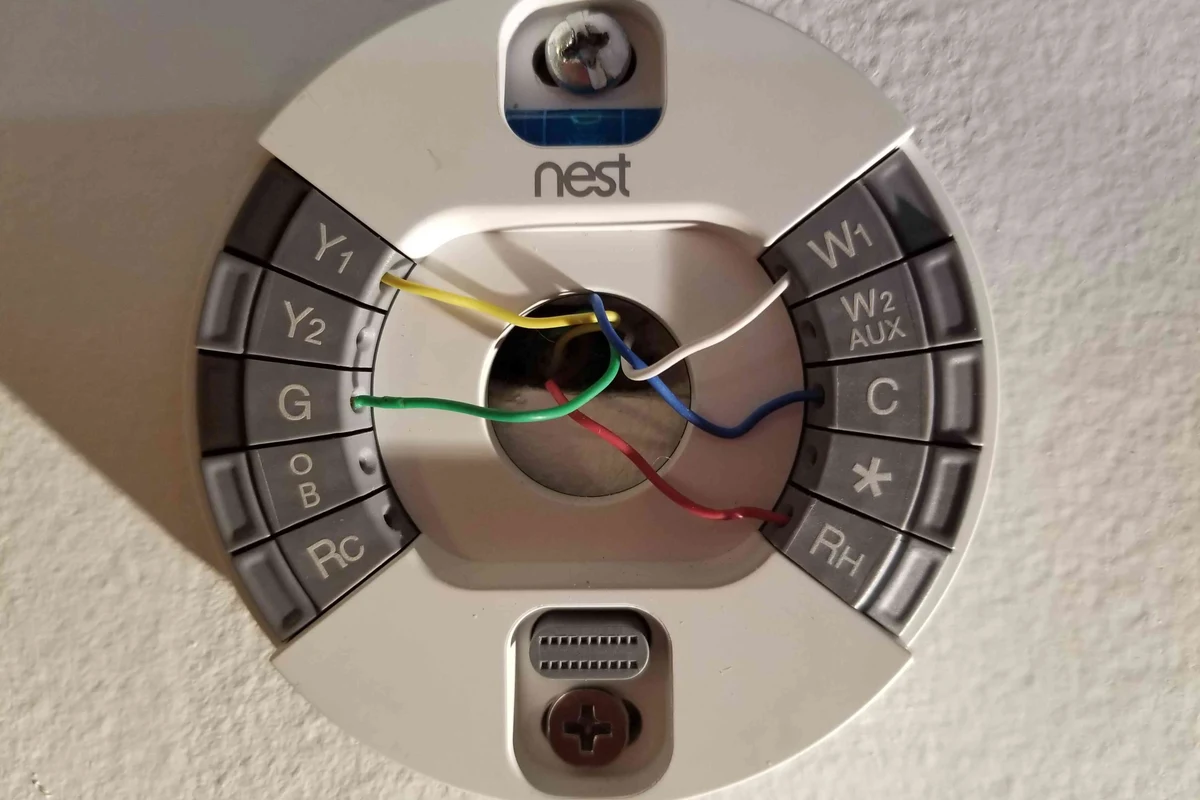
- Insert Wires:
Push the exposed wires through the hole in the base and connect them to the corresponding terminals (check your earlier photo or labels).
- Secure the Wires:
Make sure the wires are securely connected and that there are no loose strands.
- Attach the Base Plate:
Once the wires are connected, push the base onto the wall and secure it with screws.
Mounting the Device on the Wall
Once the wiring is complete, it’s time to mount the thermostat on the wall. This is a straightforward process that completes the physical installation. You can also use best smart lights for google home as a helpful next guide on the same tech-accessories topic.
- Align the Thermostat:
Align the Nest thermostat with the base and gently push it onto the base until it clicks into place.
- Power On:
Restore power to your HVAC system to turn on the Nest thermostat.
- Initial Setup:
Follow the on-screen instructions to configure settings such as language and Wi-Fi connectivity.
Before starting, ensure you have all necessary tools and verify compatibility with your HVAC system to prevent any issues during installation.
Connecting the Thermostat to Wi-Fi and the Google Home App
Connecting your Google Nest thermostat to Wi-Fi and the Google Home app allows for remote access and control. This step is essential for maximizing the thermostat’s smart features. You can also use best smart switch for google home as a helpful next guide on the same setup or usability topic.
- Open the Google Home App:
Ensure you have the Google Home app installed on your smartphone or tablet.
- Select ‘Add’:
In the app, tap ‘Add’ and choose ‘Set up device’ to start the connection process.
- Follow Prompts:
Follow the prompts in the app to connect your thermostat to your Wi-Fi network.
- Complete Setup:
Once connected, complete any additional setup steps as prompted by the app.
Configuring Settings for Energy Efficiency
After successfully connecting your thermostat, configuring it for optimal energy efficiency is the next step. This ensures you save on energy bills while maintaining comfort.
Adjusting Temperature Schedules
By establishing temperature schedules, your thermostat can automatically adjust to fit your daily routine. This feature can lead to considerable energy savings while ensuring your home remains at the desired temperature when you need it.
- Open Temperature Settings:
In the Google Home app, go to your thermostat settings and find the scheduling option.
- Set Your Preferences:
Choose the times you typically wake up, leave for work, and return home.
- Save Schedule:
Review your schedule and save it to ensure your thermostat adjusts accordingly.
Utilizing Eco Mode
Eco Mode is a feature that helps save energy when you’re away from home. Activating it ensures that your heating and cooling systems aren’t running unnecessarily. This connects closely with how to set up home security camera if you want to compare the topic in more detail.
- Access Eco Settings:
Open the Google Home app and go to the thermostat settings.
- Turn on Eco Mode:
Select the Eco Mode option and follow the prompts to enable it.
- Set Eco Temperatures:
Choose the temperatures for when you’re away, ensuring comfort while minimizing energy use.
- Check your device model and compatibility with the Nest thermostat.
- Gather required tools: screwdriver, level, and possibly a drill.
- Ensure a stable Wi-Fi connection for seamless setup.
Common Mistakes to Avoid During Setup
Setting up your Google Nest thermostat can sometimes lead to common pitfalls. By being aware of these mistakes, you can ensure a smoother installation process and avoid unnecessary troubleshooting later on. Pay attention to wiring connections and compatibility with your HVAC system to prevent issues. This also connects with how to set up home security cameras if you want to avoid a similar setup or buying mistake.
- Not Turning Off Power: Always turn off the power to your HVAC system before beginning installation to prevent electrical shocks.
- Incorrect Wiring: Double-check that all wires are connected to the correct terminals to avoid malfunction.
- Skipping the Compatibility Check: Ensure your system is compatible with the Nest thermostat to avoid installation issues.
- Label wires when removing the old thermostat to simplify installation.
- Use a level when mounting the thermostat for accurate positioning.
- Regularly check for software updates in the app for optimal performance.
Troubleshooting Common Installation Issues
Troubleshooting Common Installation Issues is easiest to diagnose by checking one likely cause at a time instead of changing several settings together. For how to set up google nest thermostat, start with power, connection, app or system settings, then use the official manual if the problem repeats.
Thermostat Not Powering On: Check that the power is restored to the HVAC system and that all wiring connections are secure. Wi-Fi Connection Issues: Ensure that your Wi-Fi network is functioning properly and that you entered the correct password. Display Issues: If the display is not working, check the power supply and consider resetting the thermostat. For setup context, how to set up google speaker can help you compare similar setup details.
Safety and Compatibility Considerations
Before proceeding with the installation, understanding safety and compatibility issues is crucial. This section outlines what to check to ensure a safe and effective setup. This also connects with how to set up gosund smart plug 2 if you want to avoid a similar setup or buying mistake.
- Check Voltage: Ensure your HVAC system operates at a compatible voltage level to avoid damage.
- Follow Local Codes: Adhere to local building codes and regulations regarding thermostat installations.
- Consider Professional Help: If you are unsure about the installation process, consider hiring a professional for safety and accuracy.
The Google Nest thermostat can learn your schedule over time, adjusting temperatures automatically to match your routines.
Maintaining Your Google Nest Thermostat
Maintaining Your Google Nest Thermostat should protect the device surface, ports, vents, sensors, and powered parts while removing normal dust or buildup. For how to set up google nest thermostat, follow the manufacturer cleaning guidance and disconnect power whenever the instructions require it.
Check for Software Updates: Regularly check for updates through the Google Home app to ensure your thermostat has the latest features. Clean the Thermostat: Periodically clean the thermostat and ensure there is no dust or debris affecting its performance. Review Energy Reports: Use the energy history feature to monitor usage and make necessary adjustments to your schedule.
If you encounter issues, consult the Google Nest support page for troubleshooting steps and guidance.
When to Consider Replacing Your Thermostat
When to Consider Replacing Your Thermostat adds practical context to how to set up google nest thermostat by focusing on the details that affect real setup and daily use. Check what applies to the current device, what needs verification, and which next step is safest before making another change.
- Frequent Malfunctions: If your thermostat is consistently malfunctioning, it may be more cost-effective to replace it.
- Outdated Features: Consider upgrading if your thermostat lacks modern features such as Wi-Fi connectivity or smart scheduling.
- Incompatibility with New Systems: If you upgrade your HVAC system, ensure your thermostat is compatible; otherwise, replacement may be necessary.
Understanding Compatibility Before Installing Your Google Nest Thermostat
how to set up google nest thermostat should be handled by checking compatibility first, then changing one setting, cable, driver, app permission, or connection step at a time. Avoid risky shortcuts and use official support when power, heat, privacy, warranty, or repeated failure is involved.
Confirm the exact device model, operating system, and connection type. Try the safest reversible steps before resets, replacements, or advanced changes. Use official manuals, firmware notes, and warranty support when the issue repeats.
Final Words
Setting up your Google Nest thermostat is a vital step towards achieving optimal energy efficiency in your home. By following the provided steps and avoiding common mistakes, you can ensure that your thermostat operates effectively and enhances your comfort and savings.
—CTA BOXES—
💡 Sufiya Begom's Smart Home Note: Check Wi-Fi band, app permissions, firmware updates, privacy settings, ecosystem support, and safe electrical load before relying on any smart-home device.
Frequently Asked Questions
Questions about Smart Thermostat often depend on the exact model, connection method, software support, and daily use case. Similar products can behave differently even when they look alike or share a category name. Check current manufacturer documentation whenever compatibility, safety, privacy, firmware, or warranty details affect the answer.
Start with intended use, fit, verified specifications, safety instructions, care needs, and important limitations.
Start with the exact Smart Thermostat model, connection method, compatibility requirements, and the specific result you need. Current manufacturer documentation is the safest place to confirm details that vary by model.
Check the operating system, ports or wireless standard, power requirements, app or driver support, and any ecosystem limitations that apply to the exact setup.
A common mistake is treating every Smart Thermostat product or setup as interchangeable. Similar-looking models can differ in ports, software support, power needs, dimensions, or privacy controls.
Use the cleaning, ventilation, inspection, charging, storage, and update guidance that applies to the product type. Disconnect power first whenever the manufacturer instructions require it.
Stop and seek official support when the problem involves overheating, damaged power hardware, unstable mounting, repeated failures, data loss, or a privacy concern you cannot resolve safely.

Sufiya Begom is a Passionate Digital Innovator and the Visionary Founder of the Dynamic Platform, Digital Pro Info. With a deep-rooted enthusiasm for digital technologies, Sufiya has built a comprehensive space that offers valuable insights into digital products, reviews, guides, software, and sales, empowering individuals to make informed decisions in the ever-evolving digital landscape.