
To adjust North Bayou monitor arm, grasp the arm and pull or push it to the desired height and angle. Use the adjustment knobs to tighten or loosen the joints for optimal viewing. Ensure the monitor is secure and stable after making the adjustments.
Last updated: November 25, 2026
Learning how to adjust the North Bayou monitor arm is vital for enhancing your viewing comfort and promoting good ergonomics at your workstation. This guide outlines the straightforward steps needed for efficient adjustments. Whether you’re gaming, working from home, or studying, proper monitor positioning boosts productivity while minimizing strain.
- Start with the setup: Device model, OS, ports, power needs, and workspace change the right answer.
- Check compatibility first: Verify specifications, drivers, firmware, app support, warranty, and return policy before acting.
- Use practical steps: Change one setting or product variable at a time so you can see what.
- Know the limits: Tech advice varies by model, brand, operating system, retailer, firmware version, and official support.
How to Adjust North Bayou Monitor Arm for Optimal Viewing
Adjusting the North Bayou monitor arm enables you to set the height, angle, and orientation of your monitor to suit your needs. Correctly positioning your monitor helps prevent neck and eye strain and supports better posture. Follow these step-by-step instructions to achieve the perfect setup. For related context, you may also want to read how to connect alexa smart plug for effortless control.
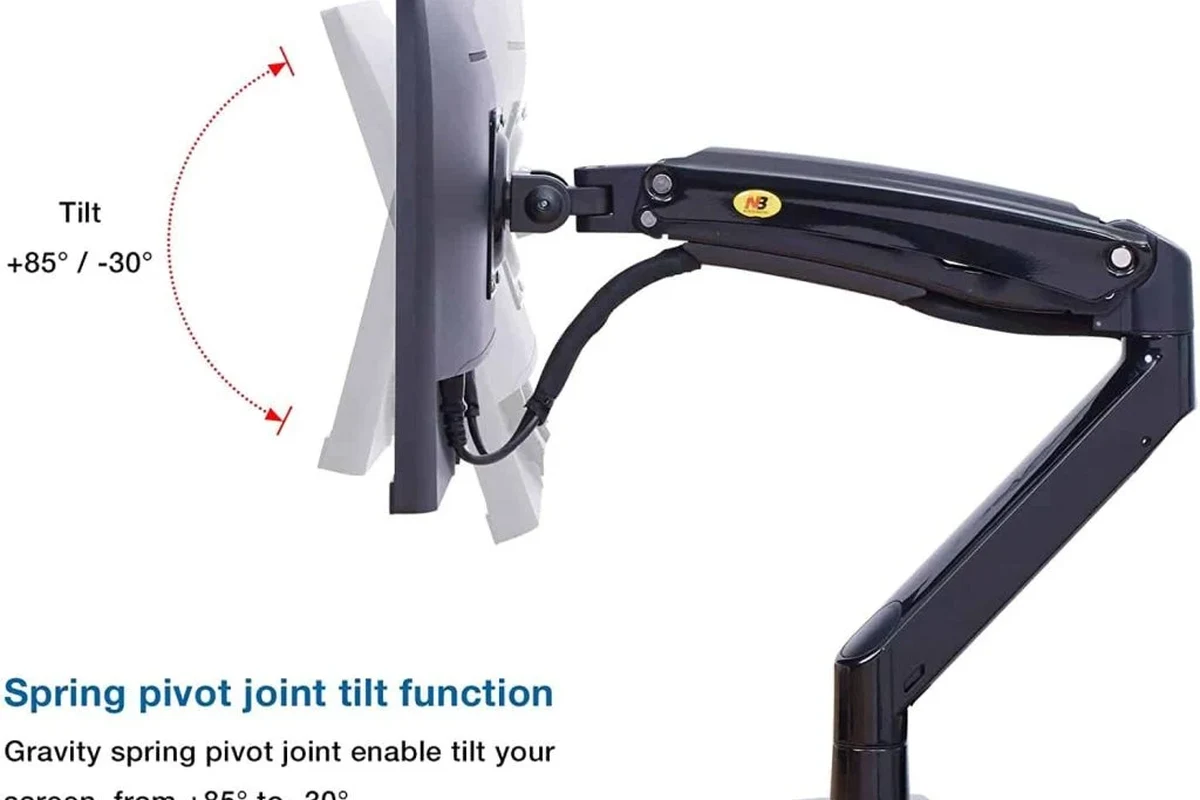
- Check your eye level before adjusting the height.
- Ensure the monitor is at least an arm’s length away.
- Test various angles for glare reduction.
Understanding the North Bayou Monitor Arm Features
The North Bayou monitor arm is designed with several features that enhance its adjustability and user experience. Familiarizing yourself with these features can make the adjustment process smoother and more effective. Key features include height adjustment, tilt, swivel, and rotation capabilities.
Height Adjustment
The height adjustment feature allows you to raise or lower your monitor to eye level, which is crucial for comfort. Ensuring your monitor is at the right height can help prevent neck strain during prolonged use.
Tilt and Swivel
Tilt and swivel capabilities enable you to adjust the angle of your monitor for better visibility and to reduce glare. This feature is particularly useful in multi-monitor setups or when working in different lighting conditions.
Rotation
The ability to rotate your monitor allows for portrait or landscape viewing, which can be beneficial for various tasks such as coding or reading long documents. Understanding how to utilize this feature can enhance your workflow. This connects closely with how to set up a smart plug for effortless home automation if you want to compare the topic in more detail.
Step-by-Step Guide to Adjusting Your Monitor Arm
This section provides a comprehensive step-by-step guide on how to adjust your North Bayou monitor arm effectively. Following these steps will ensure that you achieve the best viewing position for your monitor.
| Adjustment Type | Steps to Adjust |
|---|---|
| Height Adjustment | Loosen the height adjustment knob, raise or lower the monitor arm, and tighten the knob securely. |
| Angle Adjustment | Use the angle adjustment lever to tilt the monitor forward or backward to your preferred angle. |
| Extension Adjustment | Pull the monitor arm outward to extend it, then lock it in place using the locking mechanism. |
| Rotation Adjustment | Gently rotate the monitor to your desired orientation, ensuring it clicks into place for stability. |
Preparing for Adjustment: Tools and Setup
Before making adjustments, gather the necessary tools and set up your workspace. A Phillips screwdriver may be required for some adjustments, depending on your monitor arm model. Clear your workspace to allow for easy maneuverability.
Adjusting Height and Angle for Comfort
To achieve optimal comfort, adjust the height and angle of your monitor. Start by loosening the adjustment knobs or screws, then raise or lower the monitor to your preferred height. Tilt the monitor to reduce glare and swivel it to the desired angle. You can also use how to setup kasa smart plug for effortless home automation as a helpful next guide on the same tech-accessories topic.
Ensure your monitor does not exceed the weight limit to prevent accidents or damage.
Common Mistakes When Adjusting Monitor Arms
Adjusting a monitor arm can be tricky, and common mistakes can lead to discomfort or reduced functionality. Take the time to familiarize yourself with the adjustment mechanisms and ensure that your monitor is positioned correctly for your specific workspace needs. This also connects with how to decorate a blue bedroom for fall if you want to avoid a similar setup or buying mistake.
Over-tightening vs. Under-tightening
Over-tightening can damage the monitor arm or make adjustments difficult, while under-tightening may result in instability. Striking the right balance is essential for a secure and functional setup.
Ignoring Weight Limits and Compatibility
Each monitor arm has a specified weight limit. Ignoring this can lead to damage or failure of the arm. Always check your monitor’s weight against the arm’s specifications for a safe setup.
Regular maintenance can extend the lifespan of your monitor arm and ensure a stable setup.
Testing Your Adjustments: Ensuring Optimal Viewing
After making adjustments to your North Bayou monitor arm, it’s essential to test your setup to ensure optimal viewing. Check for proper height, angle, and distance, and make small tweaks as necessary to enhance comfort and reduce eye strain while working. This connects closely with how does an online hotel booking system work for online website if you want to compare the topic in more detail.
Maintenance Tips for Your North Bayou Monitor Arm
Regular maintenance is key to ensuring the longevity and effectiveness of your North Bayou monitor arm. This includes checking for wear and tear, tightening screws, and ensuring that the arm moves smoothly without any obstruction or resistance. You can also use how to check if garage door is open remotely as a helpful next guide on the same tech-accessories topic.
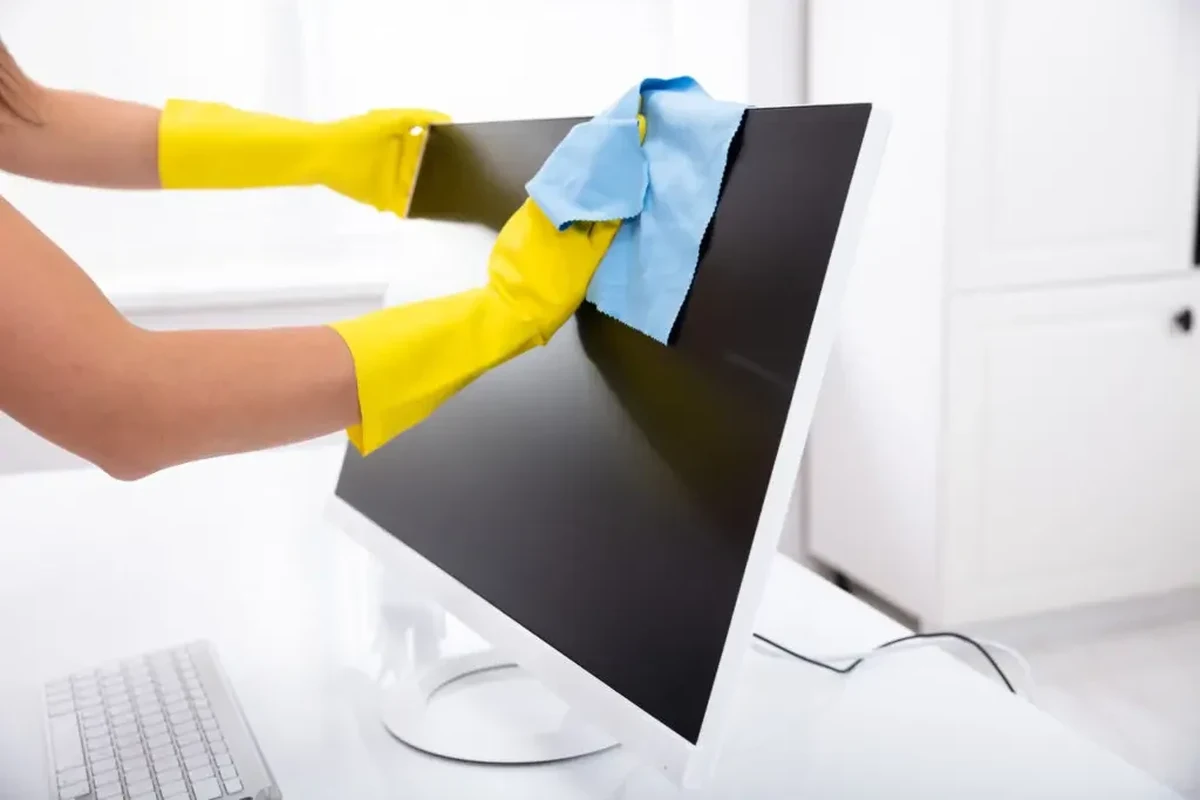
Regular Checks and Cleaning Procedures
Regular checks and cleaning are vital for maintaining your monitor arm’s performance. Dust and debris can accumulate in joints and moving parts, so routinely inspect and clean these areas to keep your setup functional and looking sharp.
- Check your monitor size and weight against the arm’s specifications.
- Verify the mounting type (VESA compatibility).
- Consider your workspace layout for optimal placement.
When to Consider Replacement or Upgrades
Even the best monitor arms may need replacement or upgrades over time due to wear or changes in your workspace needs. Assess your current setup and consider factors like monitor weight and size to determine if it’s time for a new model. For related context, you may also want to read how to connect garage door opener to alexa.
Understanding Compatibility with Different Monitor Sizes
Understanding the compatibility of your North Bayou monitor arm with different monitor sizes is crucial for achieving optimal performance. Always check the manufacturer’s specifications to ensure that your monitor’s weight and size are within the arm’s limits before installation. You can also use how to reset meross garage door opener as a helpful next guide on the same setup or usability topic.
Weight Capacity and Mounting Specifications
Every monitor arm has specific weight capacity and mounting specifications that must be adhered to for safety and performance. Verify that your monitor’s weight is within the recommended range and ensure the mounting hardware is securely attached to prevent accidents.
Safety Considerations When Using Monitor Arms
Safety considerations are paramount when using monitor arms, as improper adjustments can lead to accidents or damage. Be sure to regularly check the stability of your monitor setup and make adjustments as needed to prevent tipping or falls.
Securing Cables and Preventing Accidents
Securing cables is an important aspect of using a monitor arm to prevent accidents or damage. Use cable management solutions to keep cords organized and out of the way, reducing the risk of tripping or pulling on the monitor inadvertently.
This guide on how to adjust north bayou monitor arm is written for general digital-information education. For specifications, compatibility, prices, availability, firmware/software versions, warranty terms, recalls, privacy settings, or safety limits, confirm details with the official manual, manufacturer page, retailer listing, warranty document, or current support notice before acting.
Understanding the Importance of Proper Monitor Arm Adjustment
Proper adjustment of your monitor arm is critical for maintaining comfort and productivity during long hours of work. Ensure that your monitor is at eye level and positioned to minimize glare, helping to reduce strain on your neck and eyes.
Final Words
In conclusion, taking the time to adjust your North Bayou monitor arm correctly can greatly enhance your workspace experience. Regular maintenance and proper setup will ensure that you enjoy both comfort and efficiency in your daily tasks.
💡 Sufiya Begom's Setup Advice: Check VESA support, screen weight, desk thickness, eye level, cable clearance, and stability before buying or mounting any monitor accessory.
Frequently Asked Questions
Questions about Monitor Arm often depend on the exact model, connection method, software support, and daily use case. Similar products can behave differently even when they look alike or share a category name. Check current manufacturer documentation whenever compatibility, safety, privacy, firmware, or warranty details affect the answer.
Start with intended use, fit, verified specifications, safety instructions, care needs, and important limitations.
Start with the exact Monitor Arm model, connection method, compatibility requirements, and the specific result you need. Current manufacturer documentation is the safest place to confirm details that vary by model.
Check the operating system, ports or wireless standard, power requirements, app or driver support, and any ecosystem limitations that apply to the exact setup.
A common mistake is treating every Monitor Arm product or setup as interchangeable. Similar-looking models can differ in ports, software support, power needs, dimensions, or privacy controls.
Use the cleaning, ventilation, inspection, charging, storage, and update guidance that applies to the product type. Disconnect power first whenever the manufacturer instructions require it.
Stop and seek official support when the problem involves overheating, damaged power hardware, unstable mounting, repeated failures, data loss, or a privacy concern you cannot resolve safely.

Sufiya Begom is a Passionate Digital Innovator and the Visionary Founder of the Dynamic Platform, Digital Pro Info. With a deep-rooted enthusiasm for digital technologies, Sufiya has built a comprehensive space that offers valuable insights into digital products, reviews, guides, software, and sales, empowering individuals to make informed decisions in the ever-evolving digital landscape.