
To find the right monitor arm, consider factors like weight capacity, adjustability, mounting options, and ergonomic design. Ensure compatibility with your monitor size and desk setup to enhance comfort and productivity.
Last updated: November 27, 2026
Finding the right monitor arm can significantly improve your workspace ergonomics and efficiency. With a variety of options available, understanding how to find the right monitor arm involves assessing your needs, workspace, and the specific features that best suit your setup.
This article covers everything you need to ensure you make the right choice.
- Start with the setup: Device model, OS, ports, power needs, and workspace change the right answer.
- Check compatibility first: Verify specifications, drivers, firmware, app support, warranty, and return policy before acting.
- Use practical steps: Change one setting or product variable at a time so you can see what.
- Know the limits: Tech advice varies by model, brand, operating system, retailer, firmware version, and official support.
How to Find the Right Monitor Arm: Key Considerations
Choosing the right monitor arm requires careful consideration of several factors including your workspace, monitor compatibility, and ergonomic needs. This section will outline the critical aspects to keep in mind when selecting an arm that fits your specific requirements. For related context, you may also want to read how to find entry key on nest thermostat.
Understanding Monitor Arm Types and Features
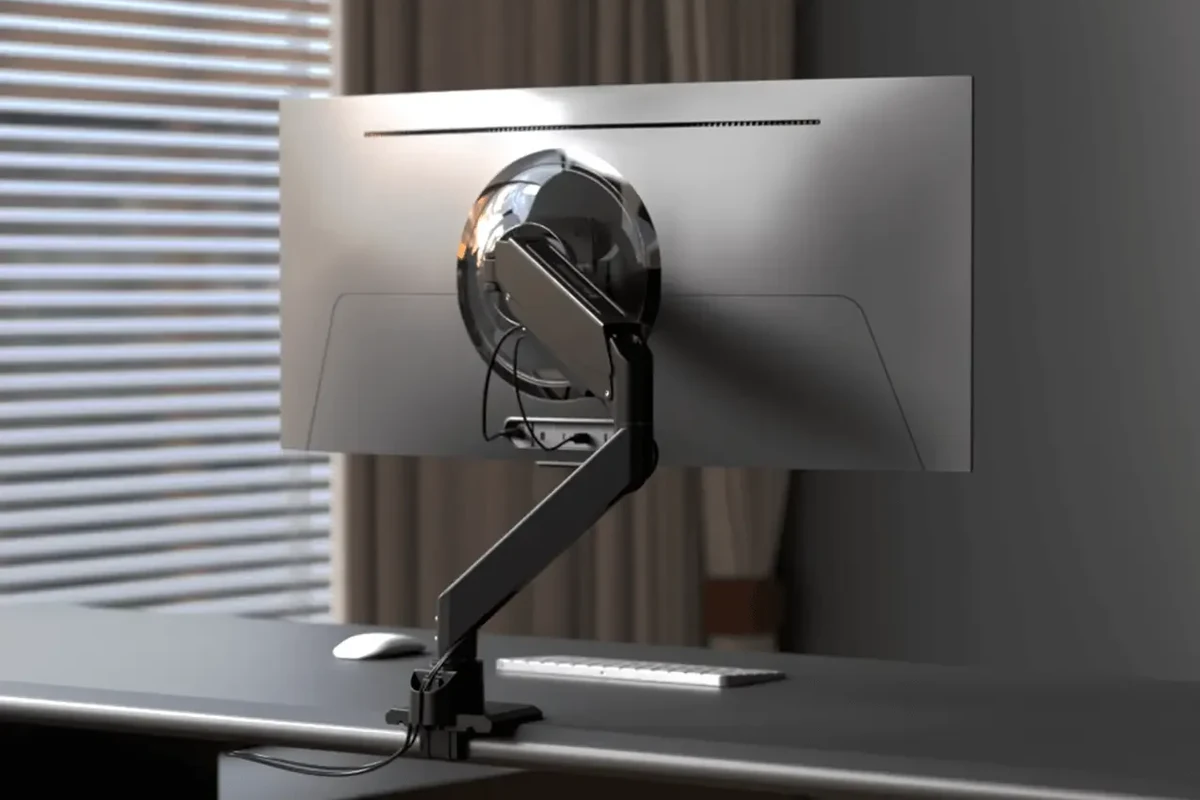
Monitor arms come in various types, each designed for different functionalities and setups. Familiarizing yourself with these types and their features will help you select the most suitable option for your workspace. This connects closely with how to unlock car smart key locked inside if you want to compare the topic in more detail.
- Fixed Mount Arms: These provide a sturdy, non-adjustable solution, ideal for minimalistic setups.
- Articulating Arms: These allow for multi-directional adjustments, perfect for dynamic work environments.
- Gas-Spring Arms: These offer easy height adjustments with minimal effort, enhancing user comfort.
Use this guide for how to find the right monitor arm as a practical checklist, then adjust the advice to your exact device model, operating system, workspace, and budget.
Assessing Your Workspace and Setup Needs
Your workspace setup plays a vital role in determining which monitor arm is right for you. Consider the size of your desk, the distance from your eyes to the monitor, and other equipment that may be present.
| Workspace Factor | Consideration |
|---|---|
| Desk Size | Ensure the monitor arm fits without obstructing other items. |
| Eye Distance | Choose an arm that allows for optimal viewing distance from your eyes. |
| Monitor Weight | Check weight capacity to ensure stability and safety. |
| Additional Equipment | Account for any other devices that may impact arm choice. |
Desk Space: Measure your available desk space to ensure the arm doesn’t overcrowd your workspace. Monitor Height: Your eye level should align with the top third of the monitor for optimal ergonomic positioning. Additional Equipment: Factor in any other devices that may be used alongside your monitor, such as laptops or docking stations. For setup context, does smartthings work with alexa find out how to simplify can help you compare similar setup details.
Compatibility Checks: Ensuring Your Monitor and Arm Match
Compatibility between your monitor and monitor arm is crucial. Check the specifications of both to ensure they align seamlessly, which will prevent issues during installation and use. You can also use how does the doorbell ring work as a helpful next guide on the same setup or usability topic.
| Monitor Arm Type | Monitor Compatibility | What to Check |
|---|---|---|
| Fixed Mount | Most standard monitors | Weight and VESA compatibility |
| Articulating Arm | Variety of monitors | Weight limit and VESA size |
| Gas-Spring Arm | Monitors with weight between 5-20 lbs | Weight and adjustment range |
Small details such as port type, charger wattage, firmware version, desk space, and app permissions can completely change the right answer.
Weight Capacity: Choosing an Arm That Holds Up
Every monitor arm has a specific weight capacity, which is crucial for ensuring stability and safety. You must know your monitor’s weight to avoid purchasing an inadequate arm.
- Check Manufacturer Specs: Look for the weight specifications on your monitor’s manual or the manufacturer’s website.
- Overloading Risks: Using an arm that can’t support your monitor can lead to damage or accidents.
- Consider Future Upgrades: If you plan to upgrade your monitor, choose an arm that can accommodate heavier models.
Common Mistakes When Choosing a Monitor Arm
It’s easy to overlook critical factors when selecting a monitor arm. Being aware of common mistakes can help you make a more informed decision.
Ignoring Weight Limits: Always check your monitor’s weight against the arm’s capacity. Overlooking VESA Patterns: Ensure your monitor’s mounting pattern matches the arm’s specifications. Neglecting Ergonomics: Consider how the arm will affect your posture and comfort during use. For related safety context, compare this with how does the ring doorbell work setup troubleshooting.
Adjustability and Ergonomics: Why They Matter
The ability to adjust your monitor’s position is essential for maintaining a healthy ergonomic setup. A well-designed monitor arm enables you to customize the height, angle, and distance of your monitor. You can also use how does the cj affiliate program work as a helpful next guide on the same tech-accessories topic.
- Height Adjustment: Look for arms that allow for easy vertical adjustment to suit standing or sitting positions.
- Swivel and Tilt: Ensure the arm allows for sufficient swivel and tilt options for reducing glare.
- Easy Movement: Gas-spring arms are often preferred for their smooth adjustment capabilities.
- Write down the exact error or behavior before changing settings.
- Test with another cable, port, or device when safe.
- Keep firmware, drivers, and apps updated from official sources.
Installation Process: Step-by-Step Guide
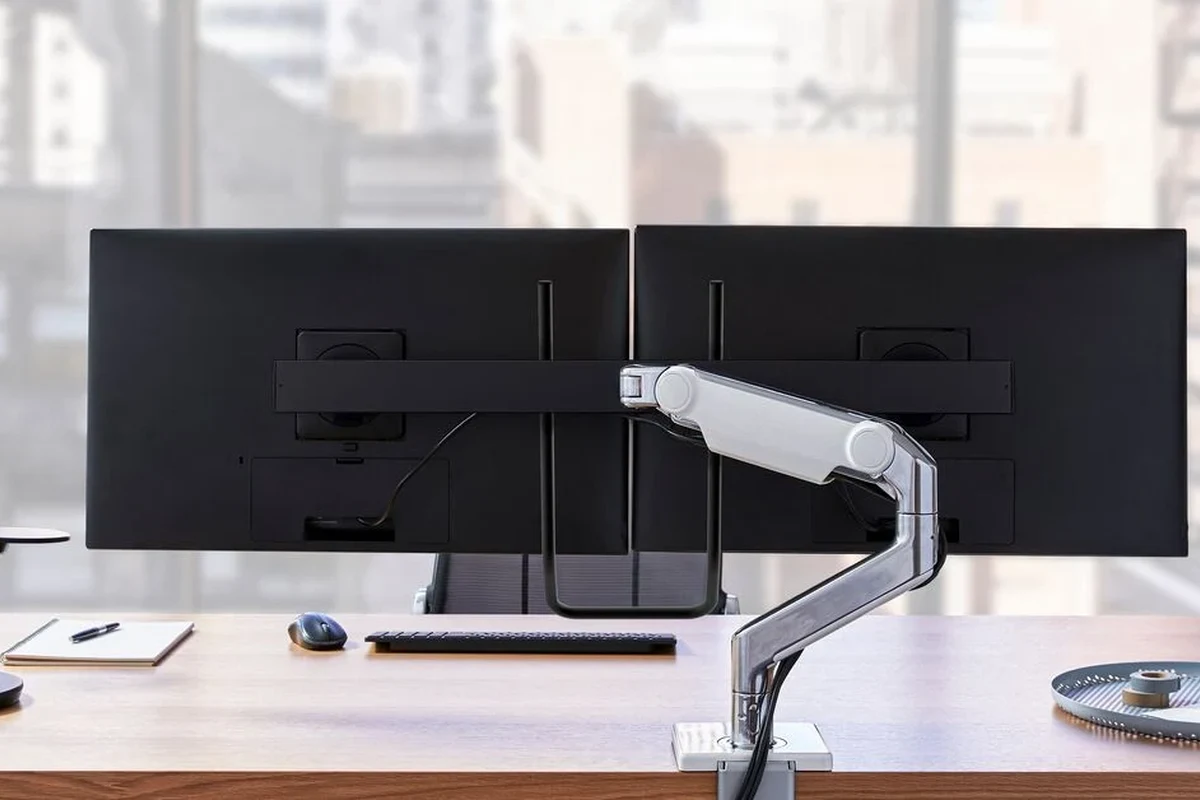
The installation process for a monitor arm can vary depending on the specific model and your desk setup. Before you begin, ensure that you have the necessary tools and a clear workspace to avoid any interruptions. A well-organized approach will lead to a more effective and safer installation.
- Gather Tools:
Ensure you have all necessary tools such as a screwdriver, level, and any included mounting hardware.
- Mounting the Arm:
Attach the monitor arm to your desk using the provided clamps or bolts.
- Attach the Monitor:
Securely mount your monitor to the arm according to the manufacturer’s instructions.
- Adjust Position:
Once mounted, adjust the monitor to your preferred height and angle.
Essential Tools for Installing Your Monitor Arm
Before installing your monitor arm, gather essential tools that will facilitate the process. Tools such as a drill, screwdriver, and level are commonly required, and having them ready can help you avoid delays. Double-check the assembly instructions to ensure you have everything needed for your specific model.
Screwdriver (Phillips or flathead, depending on the arm), measuring tape to ensure proper placement, and level to verify that the arm is straight. For setup context, how to check if garage door is open remotely can help you compare similar setup details.
Use official support or warranty guidance if the issue involves overheating, power, damaged cables, unstable mounting, privacy risk, data loss, or repeated failures.
Additional Features to Consider: USB Ports and Cable Management
When selecting a monitor arm, consider additional features that can enhance your setup. Features like built-in USB ports and cable management systems can significantly improve functionality. This connects closely with how to connect garage door opener to alexa if you want to compare the topic in more detail.
- USB Ports: Some monitor arms come with integrated USB ports for easy access.
- Cable Management: Look for arms that include clips or paths to organize cables neatly.
- Integrated Lighting: Certain models may offer built-in lighting for improved visibility.
Safety and Stability: Avoiding Common Hazards
Safety and Stability: Avoiding Common Hazards adds practical context to how to find the right monitor arm by focusing on the details that affect real setup and daily use. Check what applies to the current device, what needs verification, and which next step is safest before making another change.
Secure Mounting: Always double-check that the arm is securely attached to prevent accidents. Regular Inspections: Periodically check the arm and monitor for any signs of wear or instability. Weight Distribution: Ensure the monitor is balanced correctly to avoid tipping.
This guide on how to find the right monitor arm is written for general digital-information education. For specifications, compatibility, prices, availability, firmware/software versions, warranty terms, recalls, privacy settings, or safety limits, confirm details with the official manual, manufacturer page, retailer listing, warranty document, or current support notice before acting.
Warranty and Support: What You Need to Know
Understanding the warranty and support options available for your monitor arm can save you time and money in the long run. Familiarize yourself with what’s covered under warranty to avoid unexpected issues.
- Manufacturer Warranty: Check the duration and coverage details of the warranty provided.
- Customer Support: Look for brands that offer reliable customer service for installation or troubleshooting help.
- Return Policy: Ensure the retailer has a clear return policy in case the arm does not meet your expectations.
Understanding Compatibility Before Choosing a Monitor Arm
how to find the right monitor arm should be handled by checking compatibility first, then changing one setting, cable, driver, app permission, or connection step at a time. Avoid risky shortcuts and use official support when power, heat, privacy, warranty, or repeated failure is involved.
Confirm the exact device model, operating system, and connection type. Try the safest reversible steps before resets, replacements, or advanced changes. Use official manuals, firmware notes, and warranty support when the issue repeats.
Final Words
The main takeaway for how to find the right monitor arm is to match the advice to the exact device, connection method, and daily use case. Use safe setup steps, verify model-specific details, and contact official support when power, heat, privacy, stability, or warranty concerns remain.
💡 Sufiya Begom's Setup Advice: Check VESA support, screen weight, desk thickness, eye level, cable clearance, and stability before buying or mounting any monitor accessory.
Frequently Asked Questions
Questions about Monitor Arm often depend on the exact model, connection method, software support, and daily use case. Similar products can behave differently even when they look alike or share a category name. Check current manufacturer documentation whenever compatibility, safety, privacy, firmware, or warranty details affect the answer.
Start with intended use, fit, verified specifications, safety instructions, care needs, and important limitations.
Start with the exact Monitor Arm model, connection method, compatibility requirements, and the specific result you need. Current manufacturer documentation is the safest place to confirm details that vary by model.
Check the operating system, ports or wireless standard, power requirements, app or driver support, and any ecosystem limitations that apply to the exact setup.
A common mistake is treating every Monitor Arm product or setup as interchangeable. Similar-looking models can differ in ports, software support, power needs, dimensions, or privacy controls.
Use the cleaning, ventilation, inspection, charging, storage, and update guidance that applies to the product type. Disconnect power first whenever the manufacturer instructions require it.
Stop and seek official support when the problem involves overheating, damaged power hardware, unstable mounting, repeated failures, data loss, or a privacy concern you cannot resolve safely.

Sufiya Begom is a Passionate Digital Innovator and the Visionary Founder of the Dynamic Platform, Digital Pro Info. With a deep-rooted enthusiasm for digital technologies, Sufiya has built a comprehensive space that offers valuable insights into digital products, reviews, guides, software, and sales, empowering individuals to make informed decisions in the ever-evolving digital landscape.