
Yes, to add apps to Fire Stick, go to the Home screen, select the Search option, type the app name, and choose it from the results. Then click on ‘Get’ or ‘Download’ to install the app easily.
Last updated: November 1, 2026
Adding apps to your Fire Stick is a simple process. This guide provides step-by-step instructions, from checking compatibility to troubleshooting common problems. Whether you’re looking to expand your streaming options or discover new content, you’ll find everything you need here.
- Start with the setup: Device model, OS, ports, power needs, and workspace change the right answer.
- Check compatibility first: Verify specifications, drivers, firmware, app support, warranty, and return policy before acting.
- Use practical steps: Change one setting or product variable at a time so you can see what.
- Know the limits: Tech advice varies by model, brand, operating system, retailer, firmware version, and official support.
How to Add Apps to Fire Stick: A Step-by-Step Guide
Installing apps on your Fire Stick lets you tailor your streaming experience. With numerous applications available, you can enjoy a variety of content, including movies, TV shows, music, and games. Follow this guide to install both official and third-party apps on your device. For related context, you may also want to read how to setup kasa smart plug for effortless home automation.
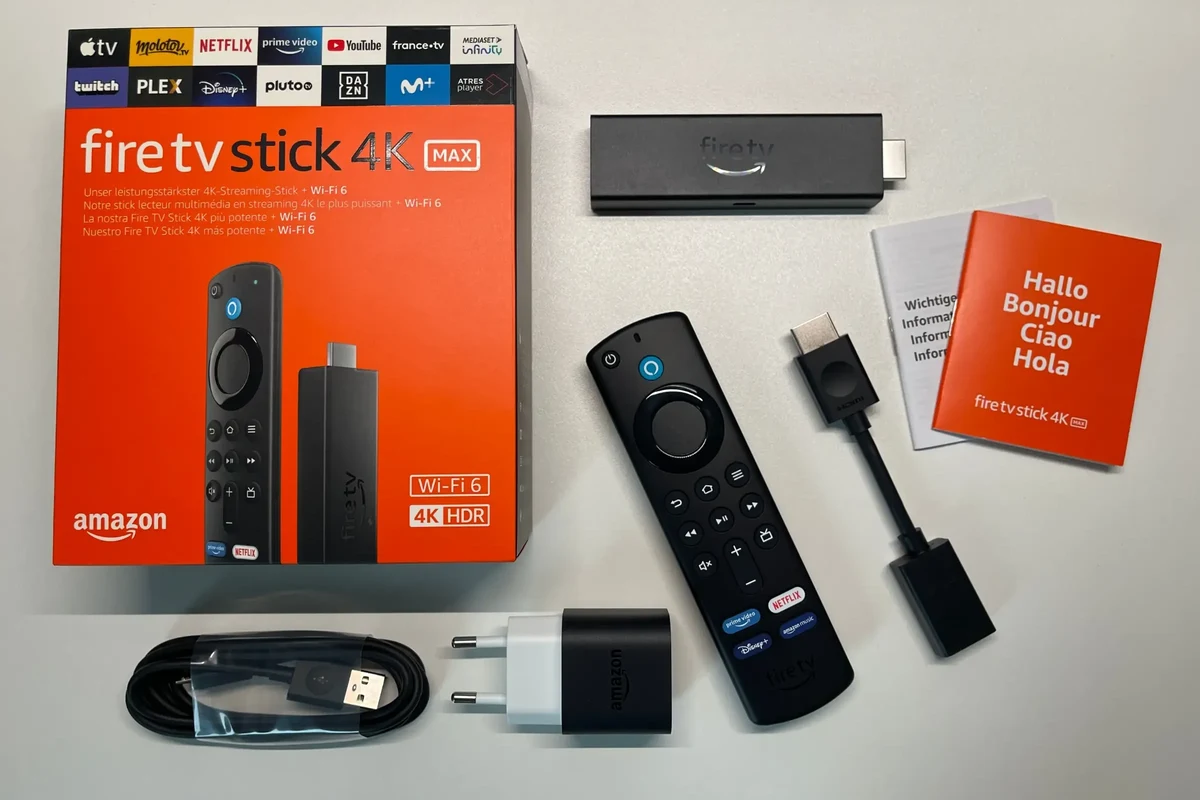
Understanding Fire Stick and Its App Ecosystem
Understanding Fire Stick and Its App Ecosystem adds practical context to how to add apps to fire stick by focusing on the details that affect real setup and daily use. Check what applies to the current device, what needs verification, and which next step is safest before making another change. This connects closely with how to setup gosund smart plug 2 if you want to compare the topic in more detail.
Use this guide for how to add apps to fire stick as a practical checklist, then adjust the advice to your exact device model, operating system, workspace, and budget.
Checking Compatibility: Which Fire Stick Model Do You Have?
Knowing your Fire Stick model is essential before adding apps. Different models may support various app features and performance. Identifying your model ensures that you install compatible applications without encountering issues. For setup context, how to setup smart plug with alexa 2 can help you compare similar setup details.
| Fire Stick Model | Release Year | Key Features |
|---|---|---|
| Fire TV Stick (1st Gen) | 2014 | 720p HD streaming, no voice control |
| Fire TV Stick (2nd Gen) | 2016 | 1080p HD streaming, Alexa Voice Remote |
| Fire TV Stick 4K | 2018 | 4K UHD streaming, Dolby Vision, HDR |
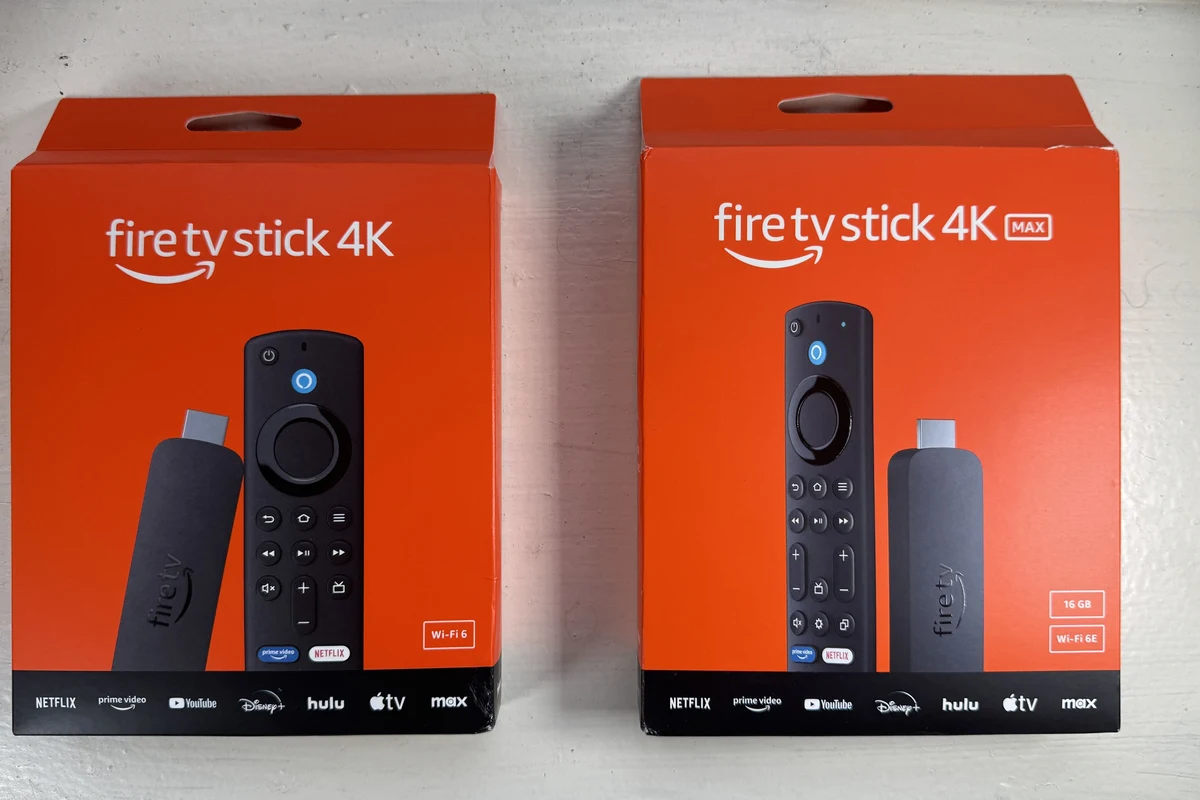
| Fire TV Stick 4K Max | 2021 | Improved performance, Wi-Fi 6 support |
| Fire TV Stick Lite | 2020 | 1080p HD streaming, basic remote |
Prepping Your Fire Stick for App Installation
Preparing your Fire Stick for app installation is a necessary step. First, connect to your Wi-Fi network and log into your Amazon account. Updating your device’s software ensures you have the latest features and security updates before downloading apps.
Connecting to Wi-Fi and Amazon Account
To use your Fire Stick effectively, it must be connected to the internet and linked to your Amazon account. This connection enables access to the Amazon Appstore and streaming services. Here’s how to connect:
- Navigate to Settings
From the Fire Stick home screen, scroll to the gear icon to open the Settings menu.
- Select Network
Choose your Wi-Fi network from the list of available networks and enter the password to connect.
- Sign In
If prompted, sign in to your Amazon account using your credentials.
Updating Your Fire Stick Software
Keeping your Fire Stick’s software up to date is essential for optimal performance and security. Regular updates can improve app compatibility and provide new features. Follow these steps to update your software: For related context, you may also want to read how to setup gosund smart plug.
- Go to Settings
Access Settings from the home screen.
- Select My Fire TV
Scroll down and select My Fire TV.
- Choose About
Select About, then click on Check for Updates to see if any updates are available.
Small details such as port type, charger wattage, firmware version, desk space, and app permissions can completely change the right answer.
How to Install Apps from the Amazon Appstore
The Amazon Appstore is the primary source for downloading apps on your Fire Stick. Here’s how you can install apps directly from the Appstore: For setup context, how to setup smart plug with alexa can help you compare similar setup details.
- Access the Appstore
From the home screen, navigate to the Apps section to browse available applications.
- Search for the Desired App
Use the search function to find specific apps or explore categories.
- Select and Install
Choose the app you want, click on it, and select Get or Download to install it.
Installing Third-Party Apps on Your Fire Stick
While the Amazon Appstore offers a variety of apps, you might want to install third-party applications for additional content. This process requires extra steps to ensure security and compatibility.
Enabling Developer Options
To install third-party apps, you first need to enable Developer Options on your Fire Stick. This allows you to download applications from sources outside the Appstore. Here’s how to do it:
- Open Settings
Go to the Settings menu on your Fire Stick.
- Select My Fire TV
Navigate to My Fire TV and click on it.
- Select Developer Options
Find Developer Options and enable Apps from Unknown Sources.
Using Downloader App for Third-Party Installations
Using Downloader App for Third-Party Installations works best when the device, connection method, power needs, and required app or permission are confirmed first. For how to add apps to fire stick, follow the setup in order and verify each step before changing another setting. You can also use how to setup kasa smart plug as a helpful next guide on the same setup or usability topic.
- Install the Downloader App
Search for the Downloader app in the Amazon Appstore and install it.
- Open Downloader
Launch the app and enter the URL of the APK file you want to download.
- Follow the Installation Prompts
Once the download finishes, follow the on-screen instructions to install the app.
- Write down the exact error or behavior before changing settings.
- Test with another cable, port, or device when safe.
- Keep firmware, drivers, and apps updated from official sources.
Common Mistakes to Avoid When Adding Apps
While adding apps to your Fire Stick can seem straightforward, several common mistakes can hinder the process. Avoiding these pitfalls will streamline your installation experience. For related safety context, compare this with how to setup amazon smart plug.
- Neglecting to update your Fire Stick before installation can lead to compatibility issues.
- Not checking app permissions may expose your device to security risks.
- Forgetting to enable Developer Options for third-party apps will prevent installation.
- Using unreliable sources for APKs can lead to malware and other security threats.
Use official support or warranty guidance if the issue involves overheating, power, damaged cables, unstable mounting, privacy risk, data loss, or repeated failures.
Maintaining Privacy and Security While Using Apps
Maintaining Privacy and Security While Using Apps should protect the device surface, ports, vents, sensors, and powered parts while removing normal dust or buildup. For how to add apps to fire stick, follow the manufacturer cleaning guidance and disconnect power whenever the instructions require it.
Only download apps from reputable sources to minimize security risks. Regularly check app permissions and revoke unnecessary access. Consider using a VPN to safeguard your online activity. This connects closely with how to setup smart plug if you want to compare the topic in more detail.
What to Do If an App Doesn’t Work Properly
Encountering issues with an app can be frustrating, but troubleshooting is often straightforward. Start by checking your internet connection, as many apps require a stable network to function properly. If problems persist, consider reinstalling the app or clearing its cache to resolve minor glitches.
- Restart Your Fire Stick
A simple restart can resolve many performance issues.
- Check for Updates
Ensure the app and your Fire Stick’s software are up to date.
- Clear App Cache
Go to Settings, select Applications, and clear the cache for the problematic app.
This guide on how to add apps to fire stick is written for general digital-information education. For specifications, compatibility, prices, availability, firmware/software versions, warranty terms, recalls, privacy settings, or safety limits, confirm details with the official manual, manufacturer page, retailer listing, warranty document, or current support notice before acting.
Official Support and Warranty Considerations
Should you encounter persistent problems, seeking official support is advisable. Be aware of the warranty terms associated with your Fire Stick to understand what support options are available. To get assistance:
- Visit the Amazon Customer Service website for help.
- Check if your device is still under warranty for potential replacements.
- Utilize the Fire Stick user manual for troubleshooting tips.
Understanding App Compatibility Before Installation
how to add apps to fire stick should be handled by checking compatibility first, then changing one setting, cable, driver, app permission, or connection step at a time. Avoid risky shortcuts and use official support when power, heat, privacy, warranty, or repeated failure is involved.
Confirm the exact device model, operating system, and connection type. Try the safest reversible steps before resets, replacements, or advanced changes. Use official manuals, firmware notes, and warranty support when the issue repeats.
Final Words
The main takeaway for how to add apps to fire stick is to match the advice to the exact device, connection method, and daily use case. Use safe setup steps, verify model-specific details, and contact official support when power, heat, privacy, stability, or warranty concerns remain.
💡 Sufiya Begom's Smart Home Note: Check Wi-Fi band, app permissions, firmware updates, privacy settings, ecosystem support, and safe electrical load before relying on any smart-home device.
Frequently Asked Questions
Questions about Fire TV Stick often depend on the exact model, connection method, software support, and daily use case. Similar products can behave differently even when they look alike or share a category name. Check current manufacturer documentation whenever compatibility, safety, privacy, firmware, or warranty details affect the answer.
Start with intended use, fit, verified specifications, safety instructions, care needs, and important limitations.
Start with the exact Fire TV Stick model, connection method, compatibility requirements, and the specific result you need. Current manufacturer documentation is the safest place to confirm details that vary by model.
Check the operating system, ports or wireless standard, power requirements, app or driver support, and any ecosystem limitations that apply to the exact setup.
A common mistake is treating every Fire TV Stick product or setup as interchangeable. Similar-looking models can differ in ports, software support, power needs, dimensions, or privacy controls.
Use the cleaning, ventilation, inspection, charging, storage, and update guidance that applies to the product type. Disconnect power first whenever the manufacturer instructions require it.
Stop and seek official support when the problem involves overheating, damaged power hardware, unstable mounting, repeated failures, data loss, or a privacy concern you cannot resolve safely.

Sufiya Begom is a Passionate Digital Innovator and the Visionary Founder of the Dynamic Platform, Digital Pro Info. With a deep-rooted enthusiasm for digital technologies, Sufiya has built a comprehensive space that offers valuable insights into digital products, reviews, guides, software, and sales, empowering individuals to make informed decisions in the ever-evolving digital landscape.