
To adjust Humanscale monitor arm, grasp the arm and pull or push to reposition the monitor to your desired height and angle. Use the adjustment knobs for tension settings to ensure smooth movement while maintaining stability.
Last updated: November 25, 2026
Yes, adjusting a Humanscale monitor arm is straightforward and can enhance your workspace ergonomics significantly. This guide provides practical steps on how to adjust your Humanscale monitor arm for optimal viewing comfort and productivity.
- Start with the setup: Device model, OS, ports, power needs, and workspace change the right answer.
- Check compatibility first: Verify specifications, drivers, firmware, app support, warranty, and return policy before acting.
- Use practical steps: Change one setting or product variable at a time so you can see what.
- Know the limits: Tech advice varies by model, brand, operating system, retailer, firmware version, and official support.
How to Adjust Humanscale Monitor Arm: A Step-by-Step Guide
Adjusting a Humanscale monitor arm involves understanding its components and proper techniques to optimize your workspace. This guide outlines the necessary steps to make adjustments easily, ensuring you achieve the best viewing angles and comfort levels. For related context, you may also want to read how to check if garage door is open remotely.
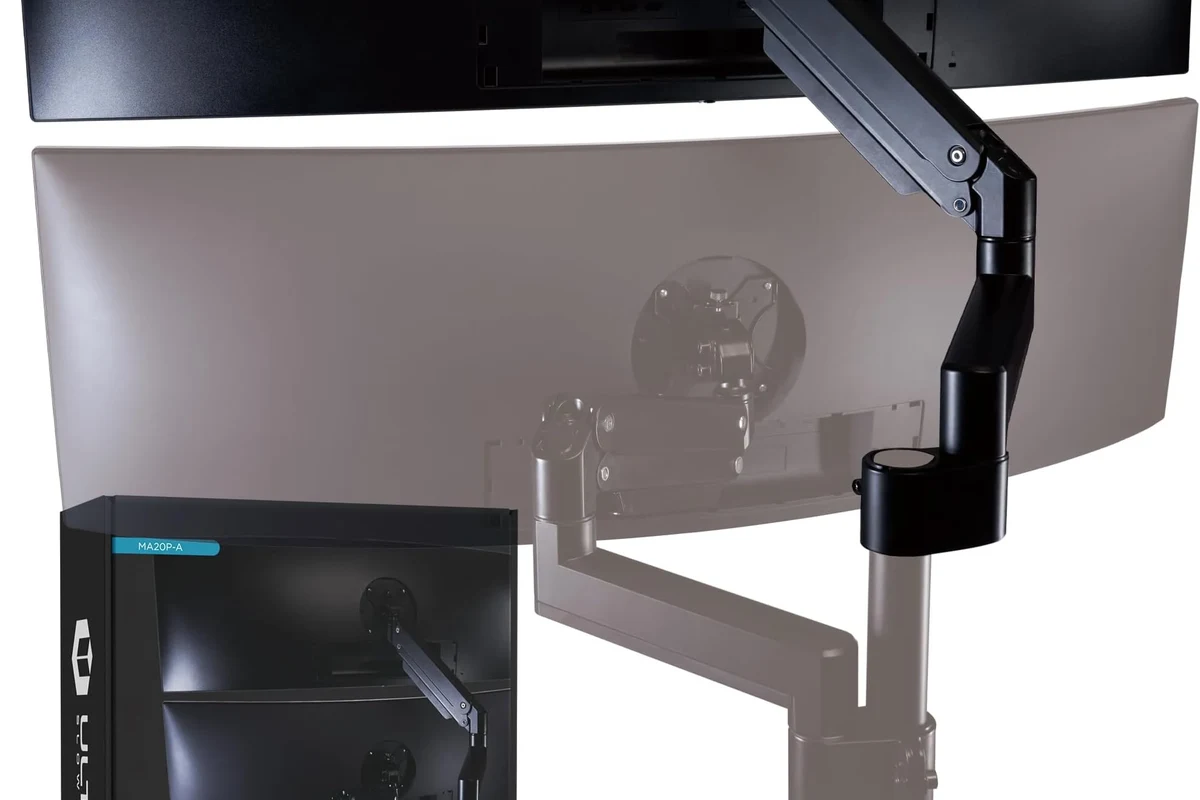
Understanding the Components of a Humanscale Monitor Arm
Before adjusting your Humanscale monitor arm, take a moment to understand its key components. Familiarizing yourself with the various parts will help you make accurate and effective adjustments when positioning your monitor. This connects closely with how to connect garage door opener to alexa if you want to compare the topic in more detail.
- Mounting Bracket: Attaches the monitor to the arm and allows for tilt and swivel adjustments.
- Arm Segment: Provides height and depth adjustments, typically designed for easy movement.
- Base: Anchors the entire setup to your desk, ensuring stability.
Use this guide for how to adjust humanscale monitor arm as a practical checklist, then adjust the advice to your exact device model, operating system, workspace, and budget.
Preparing for Adjustment: Tools and Setup
Before you start adjusting the monitor arm, ensure you have the right tools and setup. Proper preparation will streamline the adjustment process and enhance safety.
| Tool/Setup | Purpose |
|---|---|
| Phillips Screwdriver | To tighten or loosen screws on the monitor arm |
| Level | To ensure the monitor is aligned properly after adjustment |
| Measuring Tape | To measure the desired height and distance from the user |
| Workspace Clearance | To provide enough space for safe adjustment |
Tools needed: A Phillips screwdriver (if required for mounting) and possibly an Allen wrench, depending on your model. Clear your workspace: Ensure there is enough room to maneuver the monitor arm without obstruction. Check monitor weight: Ensure your monitor’s weight is within the arm’s specifications to avoid damage. For setup context, how to reset meross garage door opener can help you compare similar setup details.
Small details such as port type, charger wattage, firmware version, desk space, and app permissions can completely change the right answer.
Step-by-Step Guide to Adjusting Your Humanscale Monitor Arm
Follow these detailed steps to adjust your Humanscale monitor arm effectively. Each adjustment will help tailor your setup to your specific needs, enhancing your overall work experience.
Adjusting Height for Optimal Viewing
Setting the right height for your monitor is crucial for ergonomic comfort. The top of your monitor screen should ideally be at or slightly below eye level.
- Loosen the adjustment knob: Locate the knob or lever on the arm that controls height adjustment.
- Raise or lower the monitor: Gently lift or lower the monitor to your desired height.
- Tighten the knob: Once at the correct height, tighten the knob securely to hold the monitor in place.
Tilting and Swiveling Your Monitor
Tilting and swiveling your monitor can enhance your viewing experience, especially during collaborative work or presentations. Proper adjustment allows for better screen visibility and reduces glare. For related context, you may also want to read how to install meross smart garage door opener.
- Adjust tilt: Hold the monitor and gently tilt it forward or backward to your preferred angle.
- Swivel the monitor: Rotate the monitor left or right for shared viewing angles.
- Secure the position: Ensure the monitor stays in place by tightening any knobs or levers used for tilt and swivel adjustments.
Common Mistakes When Adjusting Monitor Arms
When adjusting your Humanscale monitor arm, it’s easy to make mistakes that can affect your setup’s functionality. Being aware of these pitfalls can save time and ensure a better configuration. For related safety context, compare this with how to mirror iphone to fire stick.
- Over-tightening: Applying too much pressure on adjustment knobs can damage the arm or the monitor.
- Ignoring weight limits: Failing to check the monitor’s weight against the arm’s specifications can lead to instability.
- Improper height settings: Setting the monitor too high or low can cause neck strain over time.
This guide on how to adjust humanscale monitor arm is written for general digital-information education. For specifications, compatibility, prices, availability, firmware/software versions, warranty terms, recalls, privacy settings, or safety limits, confirm details with the official manual, manufacturer page, retailer listing, warranty document, or current support notice before acting.
Safety Considerations During Adjustment
When adjusting your Humanscale monitor arm, safety should be your top priority. Ensure your workspace is clear of obstacles and that you’re using the right tools to avoid any potential injuries during the adjustment process. Always double-check that the monitor is securely attached before making any changes.
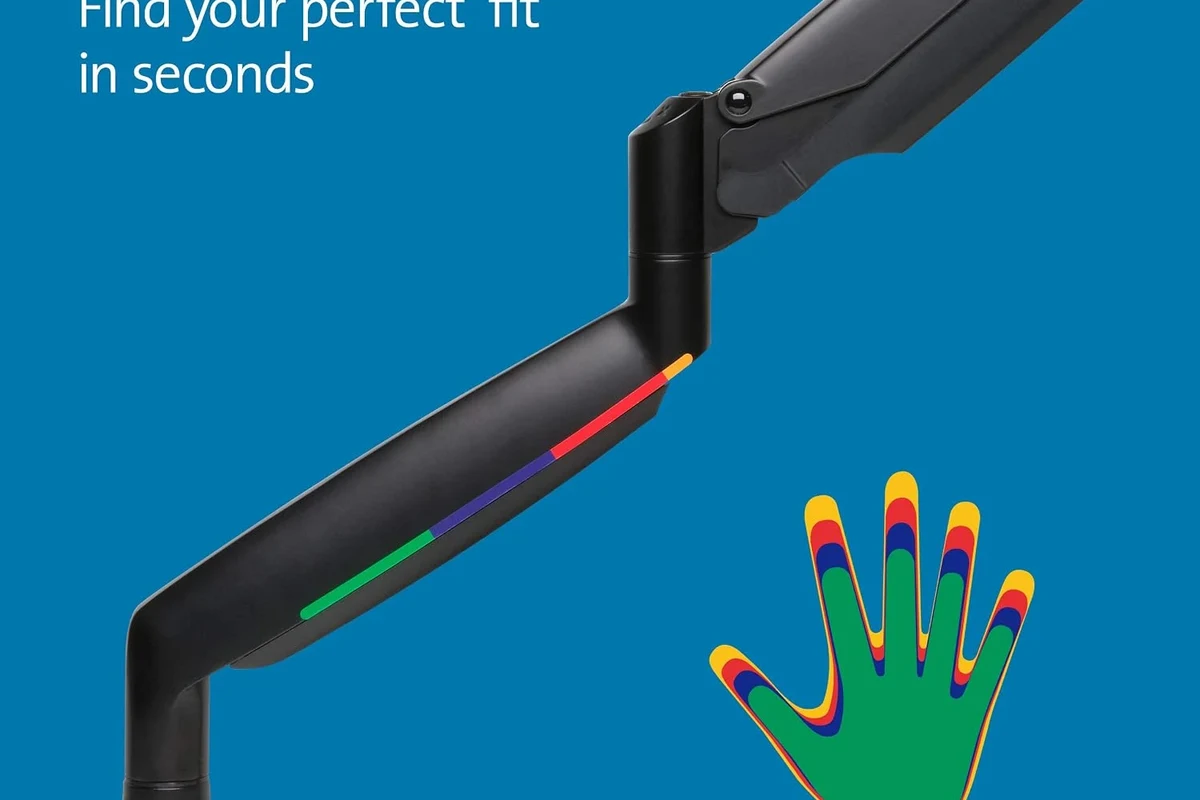
Wear safety glasses if working near any sharp edges. Ensure the area is clear of clutter to avoid tripping hazards. Ask for help if lifting a heavy monitor to prevent strain. This also connects with how to set up new fire stick if you want to avoid a similar setup or buying mistake.
Compatibility Check: Which Monitors Work Best with Humanscale Arms?
Understanding monitor compatibility is crucial for ensuring your setup works effectively. Not all monitors fit perfectly with every Humanscale arm, so check these guidelines. For buying or setup context, you may also want to read how to fix fire stick buffering.
| Monitor Size | Weight Limit | Mounting Type |
|---|---|---|
| Up to 32 inches | Up to 30 lbs | VESA 75/100 mm compatible |
| Up to 24 inches | Up to 20 lbs | VESA 75/100 mm compatible |
| Up to 19 inches | Up to 15 lbs | VESA 75/100 mm compatible |
If you encounter any issues during adjustments or require specific support, refer to your user manual or contact manufacturer support for assistance.
Maintenance Tips for Your Humanscale Monitor Arm
Maintaining your Humanscale monitor arm is essential for optimal performance and longevity. Regularly check for loose screws and clean any dust accumulation to keep the arm functioning smoothly. Proper care not only enhances usability but also helps prevent wear and tear over time. This connects closely with how to add apps to fire stick if you want to compare the topic in more detail.
- Periodically check all screws and bolts to ensure they are tight.
- Clean the arm with a damp cloth to prevent dust buildup.
- Inspect the cables for wear and tear to avoid any electrical issues.
- Regularly check monitor position to ensure it suits your ergonomic needs.
- Utilize a second person when adjusting large monitors for safety.
- Consider using cable management solutions to keep your workspace tidy.
When to Consider Replacement Instead of Adjustment
Sometimes, adjustments may not suffice, and replacing the monitor arm might be necessary. Recognizing when to make this decision can save you time and effort.
If the arm is damaged beyond repair, it’s best to replace it. If the monitor weight exceeds the arm’s limit, replacement may be necessary. Consider replacement if the arm does not allow for the required adjustments for your ergonomic needs.
Enhancing Your Workspace: The Importance of Adjusting Your Humanscale Monitor Arm
For tech buyers, understanding how to adjust a Humanscale monitor arm directly impacts your workspace ergonomics and productivity. Proper adjustments can lead to a more comfortable working experience, enhancing both focus and efficiency.
Final Words
Adjusting your Humanscale monitor arm is a valuable skill that contributes to a more ergonomic workspace. By following the outlined steps and considerations, you can enhance your comfort and productivity. Always remember to regularly check compatibility and maintenance to ensure your setup remains effective.
💡 Sufiya Begom's Setup Advice: Check VESA support, screen weight, desk thickness, eye level, cable clearance, and stability before buying or mounting any monitor accessory.
Frequently Asked Questions
Questions about Monitor Arm often depend on the exact model, connection method, software support, and daily use case. Similar products can behave differently even when they look alike or share a category name. Check current manufacturer documentation whenever compatibility, safety, privacy, firmware, or warranty details affect the answer.
Start with intended use, fit, verified specifications, safety instructions, care needs, and important limitations.
Start with the exact Monitor Arm model, connection method, compatibility requirements, and the specific result you need. Current manufacturer documentation is the safest place to confirm details that vary by model.
Check the operating system, ports or wireless standard, power requirements, app or driver support, and any ecosystem limitations that apply to the exact setup.
A common mistake is treating every Monitor Arm product or setup as interchangeable. Similar-looking models can differ in ports, software support, power needs, dimensions, or privacy controls.
Use the cleaning, ventilation, inspection, charging, storage, and update guidance that applies to the product type. Disconnect power first whenever the manufacturer instructions require it.
Stop and seek official support when the problem involves overheating, damaged power hardware, unstable mounting, repeated failures, data loss, or a privacy concern you cannot resolve safely.

Sufiya Begom is a Passionate Digital Innovator and the Visionary Founder of the Dynamic Platform, Digital Pro Info. With a deep-rooted enthusiasm for digital technologies, Sufiya has built a comprehensive space that offers valuable insights into digital products, reviews, guides, software, and sales, empowering individuals to make informed decisions in the ever-evolving digital landscape.