
To fix monitor arm sag, adjust the tension by locating the tension adjustment screw, usually found at the base or along the arm. If the sag persists, consider adding additional support or replacing the arm with a sturdier model designed for your monitor’s weight.
Last updated: November 28, 2026
Monitor arm sag is a common issue that can affect your workspace efficiency and comfort. Understanding how to fix monitor arm sag is essential for maintaining an ergonomic setup. This guide provides practical steps and insights into troubleshooting this problem effectively.
- Start with the setup: Device model, OS, ports, power needs, and workspace change the right answer.
- Check compatibility first: Verify specifications, drivers, firmware, app support, warranty, and return policy before acting.
- Use practical steps: Change one setting or product variable at a time so you can see what.
- Know the limits: Tech advice varies by model, brand, operating system, retailer, firmware version, and official support.
How to Fix Monitor Arm Sag: An Immediate Solution
To fix monitor arm sag, start by checking the weight capacity of your monitor arm and adjusting the tension settings accordingly. This immediate solution addresses the most common causes of sagging and can greatly improve your monitor’s stability. For related context, you may also want to read samsung smartthings troubleshooting common setup issues.
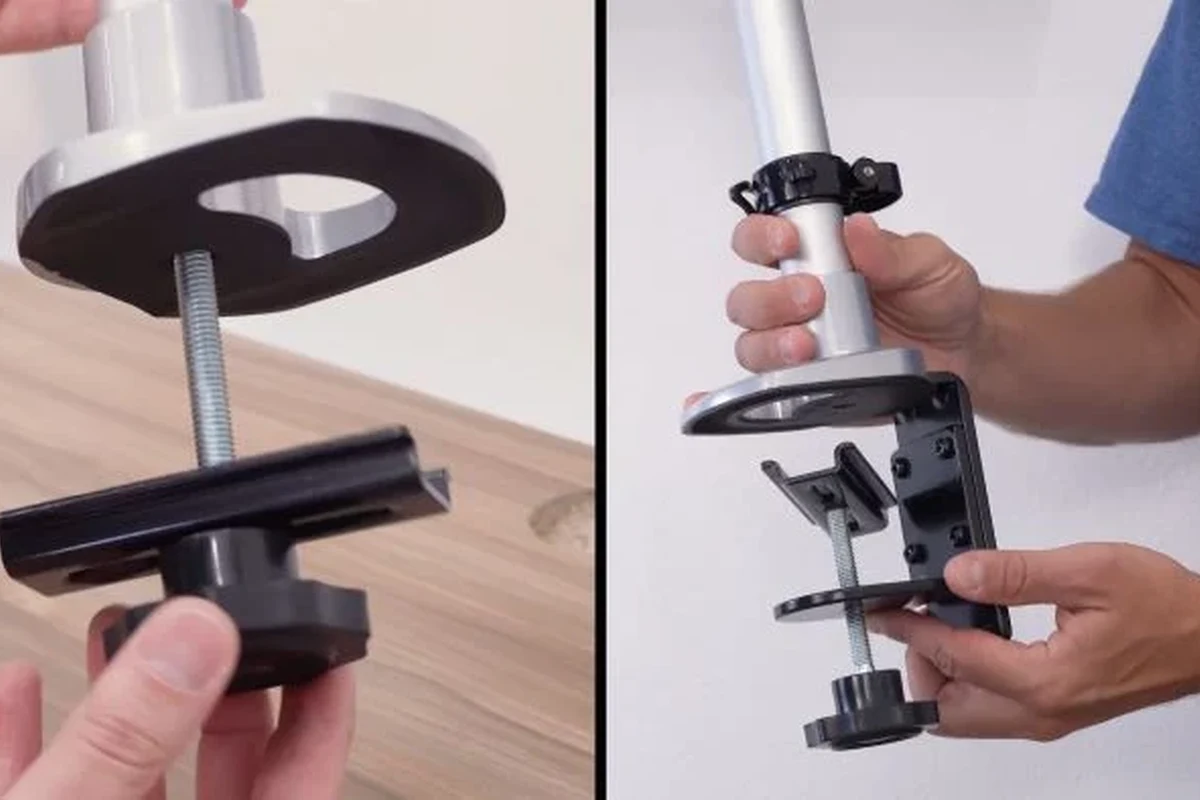
Understanding Monitor Arm Sag: Causes and Effects
Monitor arm sag typically results from weight overload, improper tension settings, or wear over time. Understanding these causes helps in effectively troubleshooting and preventing potential damage to your arm or monitor.
Weight Overload
Monitor arms have specific weight limits, and exceeding these can lead to sagging. Always check the specifications provided by the manufacturer to ensure your monitor is within the rated limits.
Improper Tension Settings
Tension settings are crucial for ensuring that your monitor arm can support the monitor’s weight. If these settings are too loose or too tight, they can lead to instability and sagging.
Wear and Tear
Over time, components of the monitor arm can wear out, affecting its ability to hold the monitor securely. Regular inspections can help identify potential issues before they lead to sagging. This connects closely with how to fix fire stick buffering if you want to compare the topic in more detail.
Use this guide for how to fix monitor arm sag as a practical checklist, then adjust the advice to your exact device model, operating system, workspace, and budget.
Tools Required for Fixing Monitor Arm Sag
Fixing monitor arm sag typically requires a few basic tools. Having the right tools on hand will make the adjustment process smoother and ensure that you can effectively address the sagging issue. You can also use how to door lock installation common mistakes avoid as a helpful next guide on the same tech-accessories topic.
| Tool | Purpose | Notes |
|---|---|---|
| Hex Key Wrench | To adjust tension settings | Usually included with the monitor arm |
| Screwdriver | To tighten or loosen screws | Flathead or Phillips, depending on the model |
| Weight Scale | To check monitor weight | Optional for verifying weight limits |
Small details such as port type, charger wattage, firmware version, desk space, and app permissions can completely change the right answer.
Step-by-Step Guide to Adjusting Your Monitor Arm
Adjusting your monitor arm requires a few careful steps to ensure it’s set up correctly. Following this guide will help you restore the stability of your monitor and prevent future sagging.
Checking the Weight Capacity of Your Monitor Arm
Before making adjustments, confirm the weight of your monitor and compare it with the weight capacity of your monitor arm. This step is crucial as it will determine whether your setup is appropriate or if other solutions are needed.
- Look for the manufacturer’s weight specifications.
- Use a scale to measure your monitor’s weight if it’s not available online.
- Consider the weight of any additional accessories (like a webcam).
Adjusting the Tension Settings
After confirming the weight, adjust the tension settings of your monitor arm. This adjustment will help secure the monitor in place and reduce sagging. For related context, you may also want to read how to install a smart lock common mistakes to avoid.
- Locate the tension adjustment knob or screw
This is usually found at the joint where the arm meets the mounting bracket.
- Use your hex key wrench or screwdriver
Turn the knob or screw to increase tension until the monitor holds its position without sagging.
- Test the monitor
Move the monitor to different positions to ensure it stays in place.
- Write down the exact error or behavior before changing settings.
- Test with another cable, port, or device when safe.
- Keep firmware, drivers, and apps updated from official sources.
Common Mistakes to Avoid When Fixing Monitor Arm Sag
When addressing monitor arm sag, it’s crucial to avoid common mistakes that can hinder the repair. For instance, overlooking the weight limit of your arm can lead to further issues down the line. Always ensure that your monitor is compatible with the arm’s specifications to achieve optimal results.
Not checking the manufacturer’s specifications before making adjustments. Failing to test the monitor after adjustments. Over-tightening the tension, which can cause damage to the arm. For related safety context, compare this with how to resolve login issues in onpassive.
Compatibility Check: Is Your Monitor Arm Suitable for Your Setup?
Before proceeding with adjustments or repairs, ensure that your monitor arm is compatible with your monitor and your workspace. This check is vital for preventing future sagging and maintaining stability. You can also use how does the ring doorbell work setup troubleshooting as a helpful next guide on the same setup or usability topic.
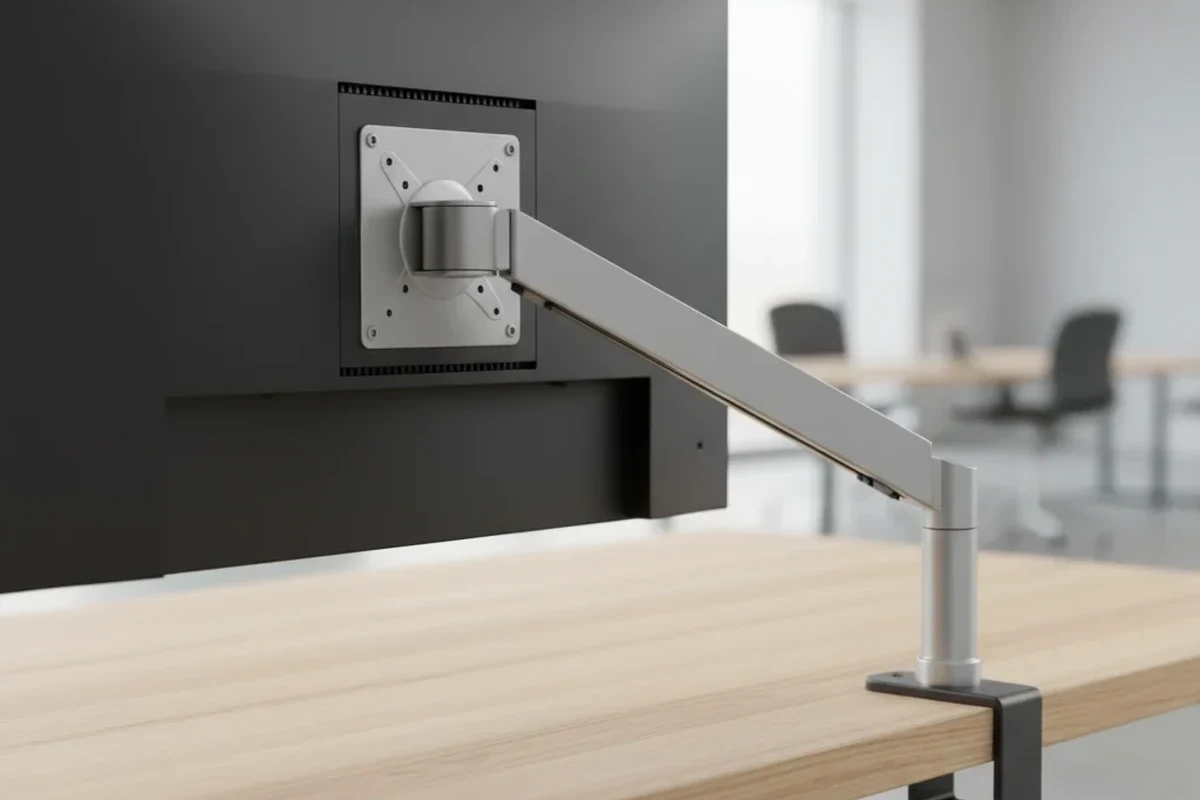
- Verify the VESA mount compatibility of your monitor.
- Ensure the arm can support the weight and size of your monitor.
- Check the arm’s reach and height adjustments to fit your desk setup.
Use official support or warranty guidance if the issue involves overheating, power, damaged cables, unstable mounting, privacy risk, data loss, or repeated failures.
When to Consider Replacing Your Monitor Arm
Sometimes, fixing monitor arm sag is not enough, and replacement might be necessary. Recognizing the right time to make this decision can save you from further issues.
Identifying Signs of Wear and Tear
Look for wear signs such as cracks, bent components, or loose joints. These issues indicate that the arm may not function effectively or safely, necessitating replacement.
Evaluating Cost-Effectiveness of Repair vs. Replacement
Consider the repair costs in relation to the price of a new monitor arm. If repairs are too costly, replacement may be a more practical option. For setup context, smartthings hub troubleshooting setup issues can help you compare similar setup details.
Safety Considerations When Adjusting Monitor Arms
Adjusting monitor arms requires careful attention to safety to prevent injuries. Make sure to use appropriate tools and wear safety gear if necessary, especially when lifting heavy monitors. Checking that all screws and fasteners are secure can help maintain stability during adjustments.
Ensure the monitor is powered off before making adjustments. Use tools safely, avoiding excessive force that might damage components. Keep your workspace clear to prevent accidents while adjusting the arm. This also connects with matter smart home troubleshooting setup issues if you want to avoid a similar setup or buying mistake.
This guide on how to fix monitor arm sag is written for general digital-information education. For specifications, compatibility, prices, availability, firmware/software versions, warranty terms, recalls, privacy settings, or safety limits, confirm details with the official manual, manufacturer page, retailer listing, warranty document, or current support notice before acting.
What This Means for Tech Buyers: Choosing the Right Monitor Arm
For those looking to purchase a monitor arm, understanding how to fix monitor arm sag can influence your buying decision. Choose an arm that meets your needs for weight capacity, adjustability, and compatibility with your monitor.
Final Words
Fixing monitor arm sag is a manageable task that involves checking weight limits and adjusting settings. By following the steps outlined and avoiding common mistakes, you can maintain an ergonomic workspace. If issues persist, consider whether replacement is necessary to ensure optimal function.
💡 Sufiya Begom's Setup Advice: Check VESA support, screen weight, desk thickness, eye level, cable clearance, and stability before buying or mounting any monitor accessory.
Frequently Asked Questions
Questions about Monitor Arm often depend on the exact model, connection method, software support, and daily use case. Similar products can behave differently even when they look alike or share a category name. Check current manufacturer documentation whenever compatibility, safety, privacy, firmware, or warranty details affect the answer.
Start with intended use, fit, verified specifications, safety instructions, care needs, and important limitations.
Start with the exact Monitor Arm model, connection method, compatibility requirements, and the specific result you need. Current manufacturer documentation is the safest place to confirm details that vary by model.
Check the operating system, ports or wireless standard, power requirements, app or driver support, and any ecosystem limitations that apply to the exact setup.
A common mistake is treating every Monitor Arm product or setup as interchangeable. Similar-looking models can differ in ports, software support, power needs, dimensions, or privacy controls.
Use the cleaning, ventilation, inspection, charging, storage, and update guidance that applies to the product type. Disconnect power first whenever the manufacturer instructions require it.
Stop and seek official support when the problem involves overheating, damaged power hardware, unstable mounting, repeated failures, data loss, or a privacy concern you cannot resolve safely.

Sufiya Begom is a Passionate Digital Innovator and the Visionary Founder of the Dynamic Platform, Digital Pro Info. With a deep-rooted enthusiasm for digital technologies, Sufiya has built a comprehensive space that offers valuable insights into digital products, reviews, guides, software, and sales, empowering individuals to make informed decisions in the ever-evolving digital landscape.