
To hide monitor arm, consider using cable management solutions like cable sleeves or clips to conceal wires. Additionally, placing a decorative object or plant strategically can help distract from the arm and create a more organized appearance, achieving a clean workspace setup while effectively hiding the monitor arm.
Last updated: November 28, 2026
A tidy workspace boosts productivity, and knowing how to hide a monitor arm can improve your setup’s aesthetics. A well-organized area minimizes distractions and fosters a professional atmosphere. This guide offers practical tips to conceal your monitor arm for a sleek look.
- Start with the setup: Device model, OS, ports, power needs, and workspace change the right answer.
- Check compatibility first: Verify specifications, drivers, firmware, app support, warranty, and return policy before acting.
- Use practical steps: Change one setting or product variable at a time so you can see what.
- Know the limits: Tech advice varies by model, brand, operating system, retailer, firmware version, and official support.
How to Hide Monitor Arm for a Clean Workspace Setup
Hiding your monitor arm effectively can transform your workspace. Not only does it improve aesthetics, but it also helps reduce clutter and distractions. This section covers various techniques and tips to achieve a clean and organized look. For setup context, how to setup kasa smart plug for effortless home automation can help you compare similar setup details.
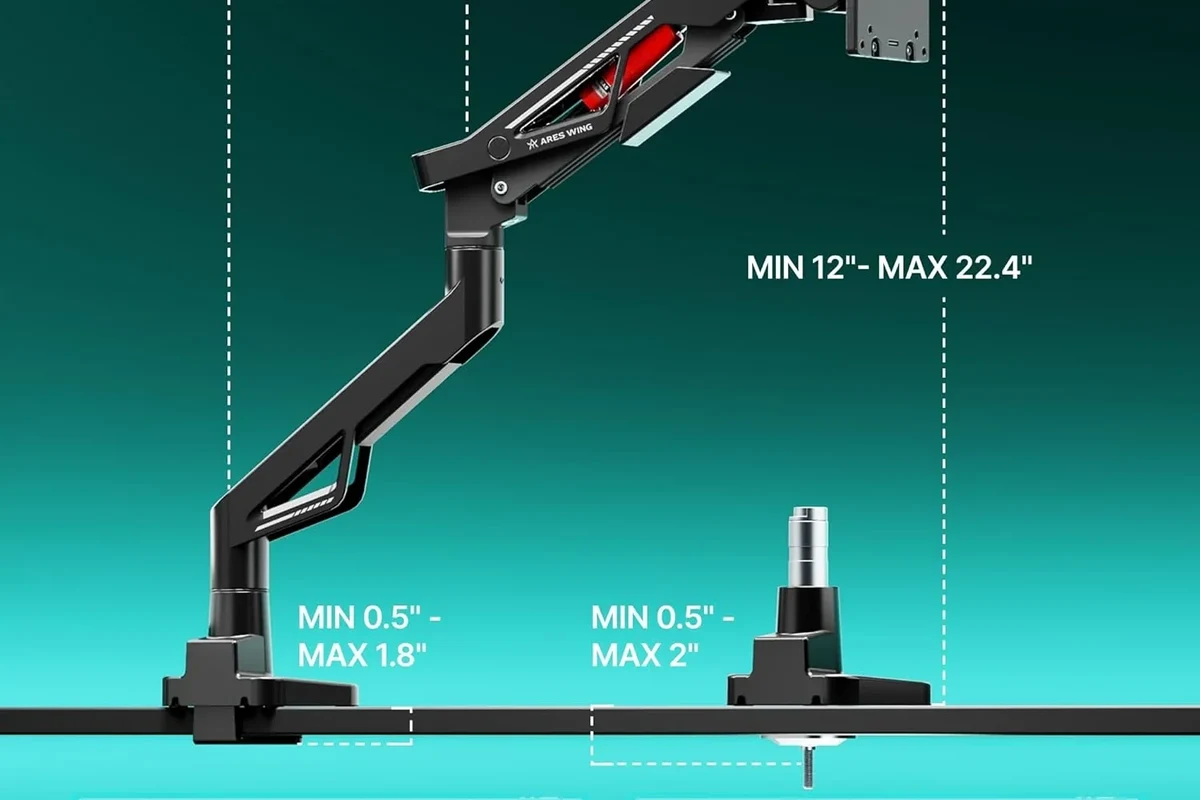
Understanding the Benefits of Hiding Your Monitor Arm
Concealing your monitor arm offers several advantages that go beyond aesthetics. A hidden monitor arm can create a more spacious environment, reduce visual clutter, and enhance your overall productivity. This connects closely with how smart plugs work setup compatibility safety tips if you want to compare the topic in more detail.
Use this guide for how to hide monitor arm as a practical checklist, then adjust the advice to your exact device model, operating system, workspace, and budget.
Choosing the Right Monitor Arm: Key Features to Consider
The selection of a monitor arm is crucial for effective concealment. When choosing a monitor arm, consider key features such as adjustability, compatibility with your monitor size, and cable management options to hide wires effectively. You can also use how does a smart lock work setup features and daily use as a helpful next guide on the same tech-accessories topic.
| Feature | Description | Importance |
|---|---|---|
| Adjustability | Ability to move the monitor arm up and down, tilt, and swivel. | High |
| Compatibility | Must support the size and weight of your monitor. | High |
| Cable Management | Features for organizing and concealing cables. | Medium |
| Mounting Options | Clamp, grommet, or wall-mounted solutions. | Medium |
Small details such as port type, charger wattage, firmware version, desk space, and app permissions can completely change the right answer.
Different Methods to Conceal Your Monitor Arm
There are various methods to hide your monitor arm, and the right choice depends on your workspace and personal preferences. Below are some effective techniques to consider.
Using Cable Management Solutions
Effective cable management is essential for hiding your monitor arm. By organizing cables properly, you can create a cleaner setup that minimizes distractions and enhances your workspace’s visual appeal.
- Use cable clips to secure wires along the monitor arm.
- Consider a cable sleeve to bundle multiple cables together.
- Mount power strips under your desk to keep them out of sight.
Incorporating Desk Accessories for a Neater Appearance
Using desk accessories can help you create a more organized look while concealing your monitor arm. Accessories such as desk organizers and decorative elements can distract from any visible hardware.
Add a stylish desk mat to unify your workspace. Use decorative boxes or trays to contain small items. Incorporate plants or art to draw attention away from the monitor arm. For related context, you may also want to read how to setup gosund smart plug 2.
- Write down the exact error or behavior before changing settings.
- Test with another cable, port, or device when safe.
- Keep firmware, drivers, and apps updated from official sources.
Step-by-Step Guide: Hiding Your Monitor Arm
This guide walks you through the process of effectively hiding your monitor arm for a more streamlined look. Focus on securing the right materials that complement your workspace, as this will ensure a smooth installation and an appealing aesthetic.
Assessing Your Workspace Layout
Evaluating your workspace layout is crucial for effectively hiding your monitor arm. Consider factors such as desk size, wall space, and cable management to find the optimal solution that not only conceals the arm but also enhances your overall setup.
- Measure Your Space
Take measurements of your desk and monitor to identify the best placement for your monitor arm.
- Identify Cable Lengths
Check the lengths of your cables to ensure they can be concealed without tension.
- Plan Your Setup
Sketch a layout of your desired setup to visualize where to place your monitor and how to hide the arm.
Gathering the Necessary Tools
Before you start concealing your monitor arm, gather the necessary tools and materials. Having everything ready will streamline the process and make it more efficient.
- Cable ties or clips for organization.
- A cable sleeve or conduit for bundling cables.
- Mounting tape or brackets, if needed for secure placement.
Executing the Hiding Techniques
Now that you have assessed your workspace and gathered your tools, it’s time to execute the hiding techniques. Follow these simple steps to achieve an organized look. This connects closely with how to setup smart plug with alexa 2 if you want to compare the topic in more detail.
- Attach the Monitor Arm
Install your monitor arm according to the manufacturer’s instructions, ensuring a secure fit.
- Organize Cables
Use cable ties to secure any cables along the monitor arm and desk.
- Conceal Cables
Utilize cable sleeves or conduits to hide visible cables, directing them toward the back of the desk.
Common Mistakes to Avoid When Hiding Monitor Arms
While trying to conceal your monitor arm, several common mistakes can hinder your efforts. Understanding these pitfalls will help you achieve a cleaner workspace.
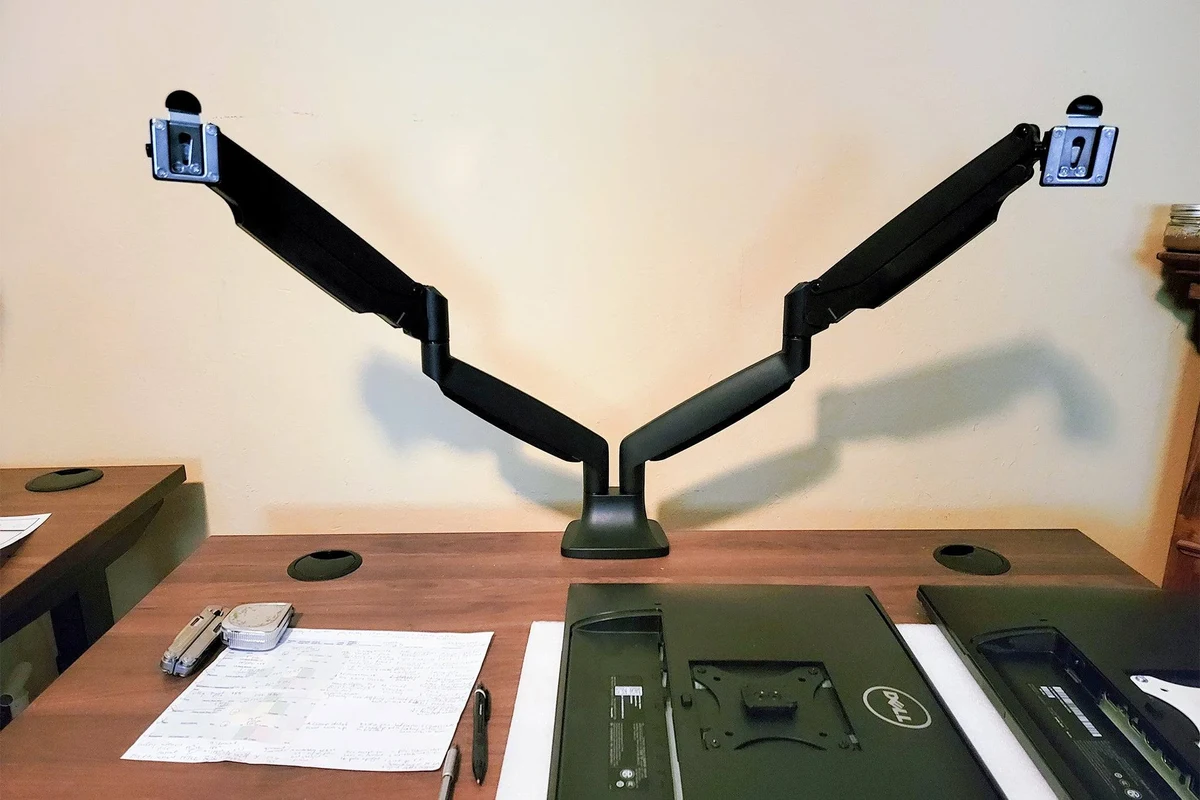
Not measuring your workspace before installation. Using cables that are too short to reach outlets or devices. Failing to consider airflow and monitor adjustability. This also connects with how to setup gosund smart plug if you want to avoid a similar setup or buying mistake.
Use official support or warranty guidance if the issue involves overheating, power, damaged cables, unstable mounting, privacy risk, data loss, or repeated failures.
Safety and Compatibility Considerations for Monitor Arms
Prioritizing safety and compatibility is key when hiding your monitor arm. Ensure your setup is stable and suitable for your equipment to avoid potential issues and guarantee a secure arrangement. For related safety context, compare this with how to setup smart plug with alexa.
- Check the weight limit of your monitor arm against your monitor’s weight.
- Ensure proper installation to avoid accidents.
- Regularly inspect for wear on cables and connections.
Alternative Solutions: Monitor Stands and Mounts
If hiding the monitor arm proves too challenging, consider alternative solutions such as monitor stands or mounts. These options can provide similar benefits while enhancing your workspace’s appearance.
Monitor stands offer additional storage space underneath. Wall-mounted monitors eliminate the need for a visible arm. Height-adjustable stands can improve ergonomics. This connects closely with how to setup kasa smart plug if you want to compare the topic in more detail.
This guide on how to hide monitor arm is written for general digital-information education. For specifications, compatibility, prices, availability, firmware/software versions, warranty terms, recalls, privacy settings, or safety limits, confirm details with the official manual, manufacturer page, retailer listing, warranty document, or current support notice before acting.
What This Means for Tech Buyers Looking for a Tidy Setup
For tech buyers, knowing how to hide a monitor arm translates to a more organized and aesthetically pleasing workspace. A clean setup not only improves productivity but also reflects professionalism. Investing in the right accessories and techniques can make a significant difference.
Final Words
Concealing your monitor arm can significantly improve your workspace’s visual appeal and functionality. By strategically planning your layout and utilizing the right accessories, you can achieve a tidy environment that boosts your productivity and keeps distractions to a minimum.
💡 Sufiya Begom's Setup Advice: Check VESA support, screen weight, desk thickness, eye level, cable clearance, and stability before buying or mounting any monitor accessory.
Frequently Asked Questions
Questions about Monitor Arm often depend on the exact model, connection method, software support, and daily use case. Similar products can behave differently even when they look alike or share a category name. Check current manufacturer documentation whenever compatibility, safety, privacy, firmware, or warranty details affect the answer.
Start with intended use, fit, verified specifications, safety instructions, care needs, and important limitations.
Start with the exact Monitor Arm model, connection method, compatibility requirements, and the specific result you need. Current manufacturer documentation is the safest place to confirm details that vary by model.
Check the operating system, ports or wireless standard, power requirements, app or driver support, and any ecosystem limitations that apply to the exact setup.
A common mistake is treating every Monitor Arm product or setup as interchangeable. Similar-looking models can differ in ports, software support, power needs, dimensions, or privacy controls.
Use the cleaning, ventilation, inspection, charging, storage, and update guidance that applies to the product type. Disconnect power first whenever the manufacturer instructions require it.
Stop and seek official support when the problem involves overheating, damaged power hardware, unstable mounting, repeated failures, data loss, or a privacy concern you cannot resolve safely.

Sufiya Begom is a Passionate Digital Innovator and the Visionary Founder of the Dynamic Platform, Digital Pro Info. With a deep-rooted enthusiasm for digital technologies, Sufiya has built a comprehensive space that offers valuable insights into digital products, reviews, guides, software, and sales, empowering individuals to make informed decisions in the ever-evolving digital landscape.