
To adjust Humanscale dual monitor arm, grasp the arm and pull it to the desired height. Use the adjustment knob to secure the position, and tilt or rotate the monitors by loosening the corresponding screws. Ensure the monitors are level and at eye level for optimal use.
Last updated: November 25, 2026
Adjusting the Humanscale dual monitor arm is a simple process that plays a vital role in creating an ergonomic workspace. This guide outlines the necessary steps to correctly set up and fine-tune your monitor arm for the best possible comfort and efficiency.
- Start with the setup: Device model, OS, ports, power needs, and workspace change the right answer.
- Check compatibility first: Verify specifications, drivers, firmware, app support, warranty, and return policy before acting.
- Use practical steps: Change one setting or product variable at a time so you can see what.
- Know the limits: Tech advice varies by model, brand, operating system, retailer, firmware version, and official support.
How to Adjust Humanscale Dual Monitor Arm for Optimal Use
Setting up your Humanscale dual monitor arm correctly can significantly impact your productivity and comfort. This section covers the basic adjustments you can make to ensure your monitors are positioned for the best ergonomic experience while working. For related context, you may also want to read how to use fire stick without remote.
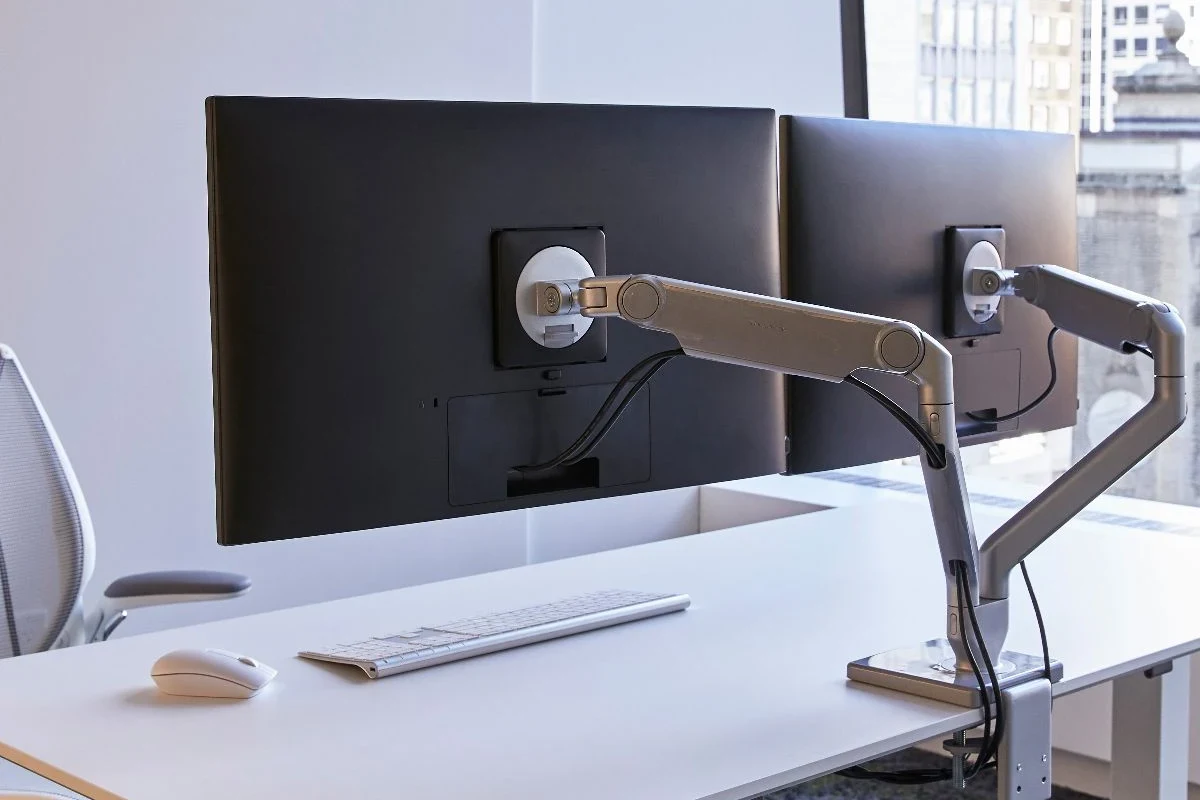
Understanding the Benefits of a Dual Monitor Setup
A dual monitor setup can enhance productivity by allowing users to multitask seamlessly. It provides more screen real estate, making it easier to compare documents, manage multiple applications, or engage in video conferencing while accessing other necessary tools. You can also use how to use lockly smart lock as a helpful next guide on the same setup or usability topic.
Use this guide for how to adjust humanscale dual monitor arm as a practical checklist, then adjust the advice to your exact device model, operating system, workspace, and budget.
Essential Features of the Humanscale Dual Monitor Arm
The Humanscale dual monitor arm is designed for flexibility and ease of use. Key features include adjustable height, tilt, swivel, and rotation, which allow users to customize their setup according to their specific needs and preferences. You can also use how to use a smart plug with alexa as a helpful next guide on the same tech-accessories topic.
| Feature | Description |
|---|---|
| Adjustable Height | Allows for easy customization to achieve an ergonomic viewing level. |
| Tilt | Enables the screen to be angled for reduced glare and improved visibility. |
| Swivel | Provides the ability to rotate monitors for collaborative work or presentations. |
| Rotation | Facilitates switching between landscape and portrait modes for different tasks. |
Small details such as port type, charger wattage, firmware version, desk space, and app permissions can completely change the right answer.
Step-by-Step Guide to Adjust Your Humanscale Dual Monitor Arm
This section offers a detailed guide on how to adjust your Humanscale dual monitor arm effectively. Follow these steps to achieve the best ergonomic setup for your monitors.
Initial Setup: Mounting Your Monitor Arm
Proper mounting is the first step to adjusting your Humanscale dual monitor arm. Ensure that your arm is securely attached to your desk or wall, as this will provide stability for your monitors.
- Choose the Location
Select a suitable spot on your desk where the arm can be mounted, ensuring it is within reach of your power outlets and cables.
- Attach the Mounting Bracket
Follow the manufacturer’s instructions to securely attach the mounting bracket to your desk or wall.
- Install the Arm
Carefully attach the monitor arm to the bracket, ensuring it is locked in place and stable.
Adjusting Height and Angle for Ergonomic Viewing
Setting the correct height and angle for your monitors is vital for reducing strain on your neck and eyes. This adjustment will allow you to maintain a comfortable posture while working.
- Height Adjustment
Lift or lower the monitor arm to align the top of your monitor with your eye level. This helps reduce neck strain.
- Angle Adjustment
Use the tilt feature to angle the monitor slightly backward (about 10-20 degrees) for optimal viewing.
Fine-Tuning Monitor Position for Optimal Productivity
Once the height and angle are set, fine-tuning the monitor’s position can further enhance your setup. This involves adjusting the distance and lateral position of the monitors. This connects closely with how to use smart plugs 2 if setup or performance is part of the issue.
- Distance Adjustment
Move the monitors closer or further away to suit your comfort level, typically around 20-30 inches from your eyes.
- Lateral Positioning
If using two monitors, adjust them so that they are equidistant from your seating position for balanced viewing.
Common Mistakes to Avoid When Adjusting Your Monitor Arm
Avoiding common mistakes when adjusting your Humanscale dual monitor arm can prevent discomfort and improve your overall efficiency. Being mindful of these errors will help you establish a more ergonomic workspace that supports your productivity. For related safety context, compare this with how to use amazon basics smart plug.
- Not aligning monitors at eye level, causing neck strain.
- Over-tightening screws, which can damage the arm.
- Ignoring the importance of monitor distance, leading to eye fatigue.
- Write down the exact error or behavior before changing settings.
- Test with another cable, port, or device when safe.
- Keep firmware, drivers, and apps updated from official sources.
Compatibility: What You Need to Know Before Adjusting
Understanding the compatibility of your monitors with the Humanscale dual monitor arm is essential for effective adjustment. Check the weight limits and VESA mount compatibility of your monitors to ensure they fit securely and function properly. This will help prevent any potential damage or instability.
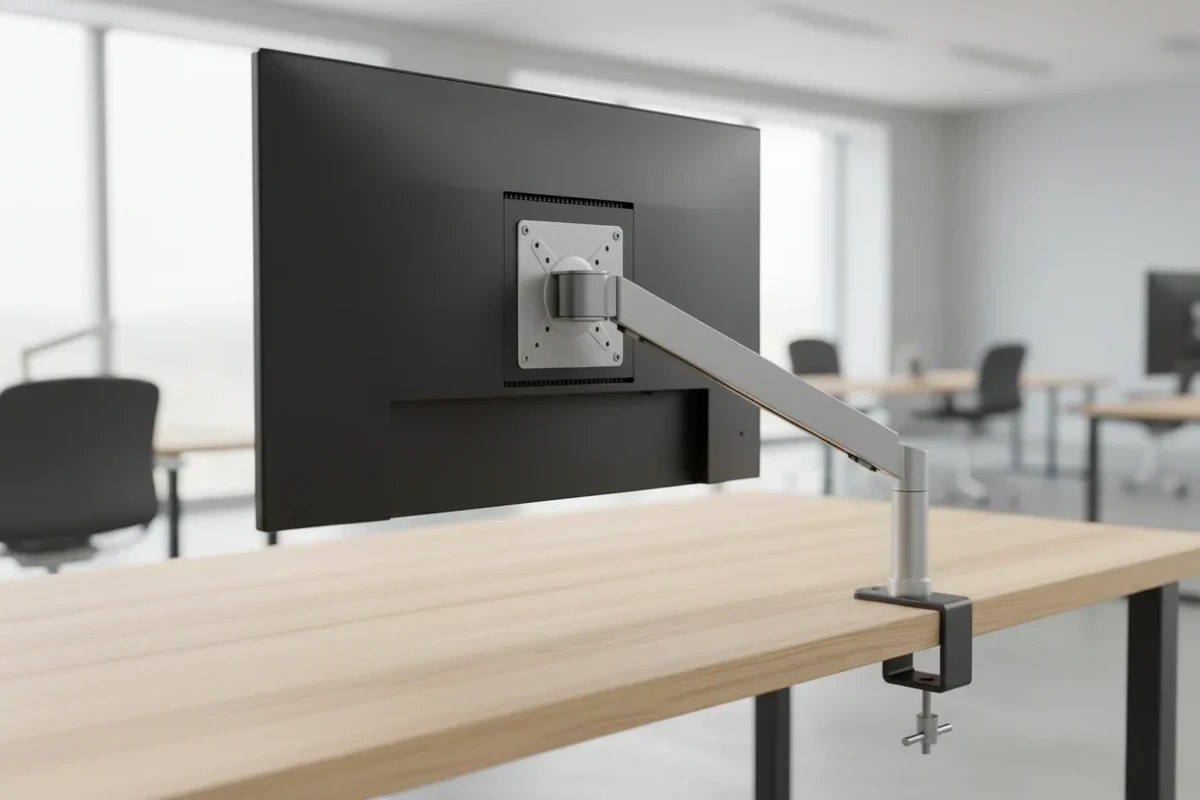
Verify that your monitors are VESA compliant (typically 75mm or 100mm). Check the weight limit of the arm to ensure it can support your monitors. Consider the size of your monitors; larger screens may require more robust support. You can also use how to connect alexa smart plug for effortless control as a helpful next guide on the same setup or usability topic.
Maintaining Your Humanscale Dual Monitor Arm
Maintaining your Humanscale dual monitor arm helps keep it functioning at its best over time. Regularly inspect for any loose screws or wear on the joints, and tighten or lubricate as needed. A simple maintenance routine can enhance performance and extend the life of your equipment. For related context, you may also want to read how to set up a smart plug for effortless home automation.
- Inspect screws and connections for tightness regularly.
- Clean the arm and mounting area to avoid dust accumulation.
- Check for wear and tear, especially on moving parts.
Use official support or warranty guidance if the issue involves overheating, power, damaged cables, unstable mounting, privacy risk, data loss, or repeated failures.
Warranty and Support: What to Expect from Humanscale
Humanscale offers warranties on their products, which vary based on the specific item. Understanding the support available can help in case of defects or issues.
For warranty details, refer to the official Humanscale website or the documentation that came with your monitor arm. Support options typically include customer service and repair services. This connects closely with what to use smart plugs for to simplify your home automation if setup or performance is part of the issue.
This guide on how to adjust humanscale dual monitor arm is written for general digital-information education. For specifications, compatibility, prices, availability, firmware/software versions, warranty terms, recalls, privacy settings, or safety limits, confirm details with the official manual, manufacturer page, retailer listing, warranty document, or current support notice before acting.
Alternatives to the Humanscale Dual Monitor Arm
If you’re exploring options beyond the Humanscale dual monitor arm, several alternatives may suit your needs. These options vary in price, functionality, and design.
Ergotron Dual Monitor Arm for adjustable height and reach. AmazonBasics Premium Dual Monitor Stand for a budget-friendly option. VIVO Dual LCD Monitor Desk Mount for a versatile alternative.
How to Use This Advice in Your Setup
Applying the advice from this guide can help you create a comfortable and efficient workspace with your Humanscale dual monitor arm. Tailor each adjustment to your personal preferences and work habits.
Final Words
Adjusting your Humanscale dual monitor arm is a straightforward process that can greatly enhance your work experience. By following the steps outlined, you can ensure your monitors are set up ergonomically, helping to reduce discomfort and increase productivity.
💡 Sufiya Begom's Setup Advice: Check VESA support, screen weight, desk thickness, eye level, cable clearance, and stability before buying or mounting any monitor accessory.
Frequently Asked Questions
Questions about Monitor Arm often depend on the exact model, connection method, software support, and daily use case. Similar products can behave differently even when they look alike or share a category name. Check current manufacturer documentation whenever compatibility, safety, privacy, firmware, or warranty details affect the answer.
Start with intended use, fit, verified specifications, safety instructions, care needs, and important limitations.
Start with the exact Monitor Arm model, connection method, compatibility requirements, and the specific result you need. Current manufacturer documentation is the safest place to confirm details that vary by model.
Check the operating system, ports or wireless standard, power requirements, app or driver support, and any ecosystem limitations that apply to the exact setup.
A common mistake is treating every Monitor Arm product or setup as interchangeable. Similar-looking models can differ in ports, software support, power needs, dimensions, or privacy controls.
Use the cleaning, ventilation, inspection, charging, storage, and update guidance that applies to the product type. Disconnect power first whenever the manufacturer instructions require it.
Stop and seek official support when the problem involves overheating, damaged power hardware, unstable mounting, repeated failures, data loss, or a privacy concern you cannot resolve safely.

Sufiya Begom is a Passionate Digital Innovator and the Visionary Founder of the Dynamic Platform, Digital Pro Info. With a deep-rooted enthusiasm for digital technologies, Sufiya has built a comprehensive space that offers valuable insights into digital products, reviews, guides, software, and sales, empowering individuals to make informed decisions in the ever-evolving digital landscape.