
Consider factors like weight capacity, adjustability, mounting options, and workspace layout to know what monitor arm to buy. Ensure the arm can support your monitor size and weight while allowing for ergonomic positioning and flexibility in your workspace setup.
Last updated: November 29, 2026
Choosing the right monitor arm for your workspace requires careful consideration of your specific needs, monitor size, and ergonomic preferences. A well-suited monitor arm can boost your productivity, enhance your posture, and create more desk space. This guide highlights the essential factors to help you make a smart decision.
- Start with the setup: Device model, OS, ports, power needs, and workspace change the right answer.
- Check compatibility first: Verify specifications, drivers, firmware, app support, warranty, and return policy before acting.
- Use practical steps: Change one setting or product variable at a time so you can see what.
- Know the limits: Tech advice varies by model, brand, operating system, retailer, firmware version, and official support.
Understanding the Benefits of a Monitor Arm
Monitor arms are increasingly popular in both home and professional environments due to their numerous advantages. They provide enhanced ergonomic benefits, improved desk organization, and greater flexibility in monitor positioning, which can lead to a more comfortable workspace. For related context, you may also want to read how to setup kasa smart plug for effortless home automation.
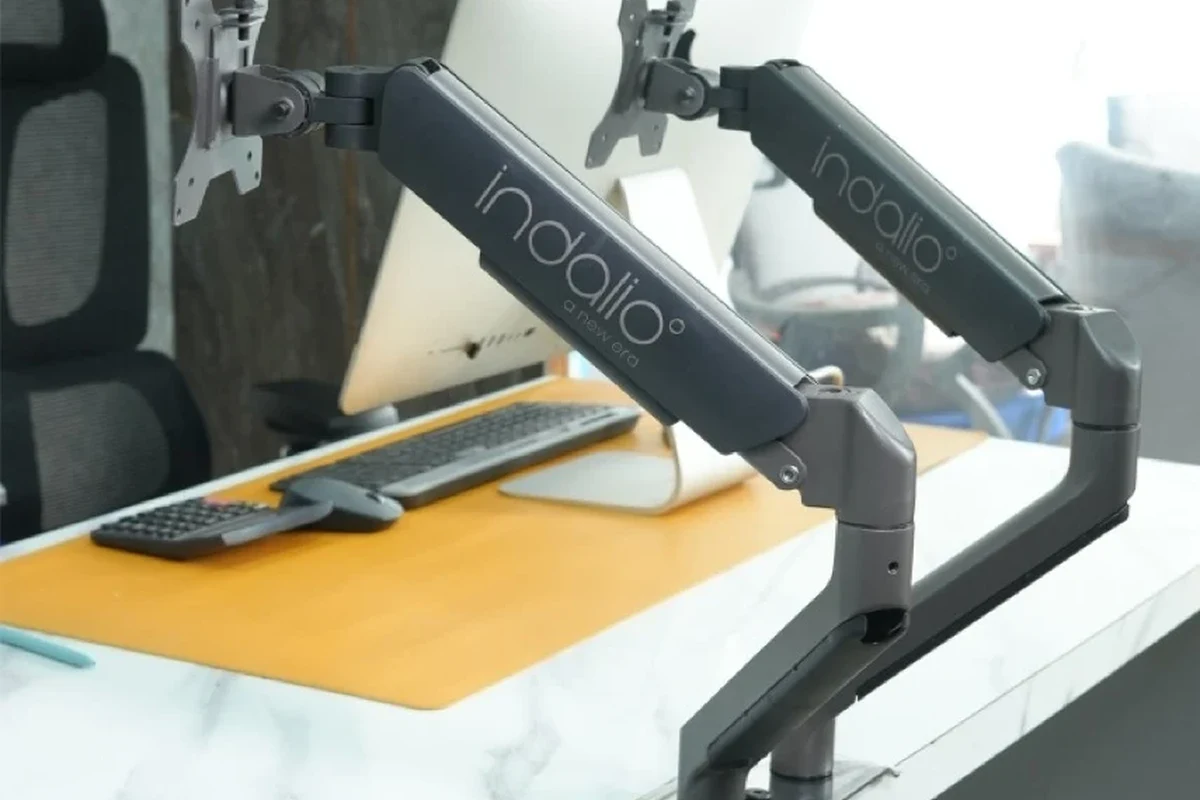
Use this guide for how to know what monitor arm to buy as a practical checklist, then adjust the advice to your exact device model, operating system, workspace, and budget.
Key Features to Consider When Choosing a Monitor Arm
When selecting a monitor arm, several key features can significantly impact its performance and compatibility with your setup. Understanding these features will help you choose the best option for your needs.
Weight Capacity and Size Compatibility
Evaluating the weight capacity and size compatibility of a monitor arm is essential to ensure it can support your monitor securely. Different models have varying limits, and matching these with your monitor’s specifications is critical.
- Check the weight of your monitor against the arm’s capacity.
- Ensure the size of the monitor fits within the arm’s design.
- Consider the type of monitor (flat, curved, etc.) as it influences compatibility.
Adjustability: Height, Tilt, and Swivel
Adjustability is a key feature of many monitor arms, allowing you to change the height, tilt, and swivel of your display. This flexibility helps you find the best viewing angle, which is important for minimizing strain during extended periods of use.
Look for arms with gas spring mechanisms for smooth adjustments. Ensure the arm can support a wide range of movements. Check if it allows for landscape and portrait orientations. This connects closely with how to setup gosund smart plug 2 if you want to compare the topic in more detail.
Different Types of Monitor Arms: Which One Is Right for You?
Monitor arms come in various configurations, each designed to cater to different user needs and setups. Understanding the types available will help you determine the best fit for your workspace.
| Monitor Arm Type | Best For | Key Features |
|---|---|---|
| Articulating Arm | Flexible positioning | Adjustable height, tilt, and swivel |
| Static Arm | Minimalist setups | Fixed height, simple design |
| Dual Monitor Arm | Multi-display setups | Supports two monitors, customizable spacing |
| Wall-Mounted Arm | Space-saving | Freed desk space, adjustable reach |
Single vs. Dual Monitor Arms
Choosing between a single and dual monitor arm depends on your workspace requirements and how many monitors you plan to use. Dual arms are beneficial for multitasking and enhancing productivity but require more desk space.
- Single arms are ideal for simpler setups or limited desk space.
- Multi-monitor setups benefit from dual arms for better organization.
- Consider your workflow to decide the right setup for you.
Wall-Mounted vs. Desk-Mounted Options
Wall-mounted and desk-mounted monitor arms offer different advantages based on your workspace layout. Wall-mounted options can save desk space but require appropriate wall support, whereas desk-mounted arms are easier to install and adjust.
Wall-mounted arms provide a clean look and save desk space. Desk-mounted arms are generally easier to install and adjust. Assess your workspace to determine the best mounting option. You can also use how to setup smart plug with alexa 2 as a helpful next guide on the same tech-accessories topic.
Small details such as port type, charger wattage, firmware version, desk space, and app permissions can completely change the right answer.
Compatibility Checks: Ensuring Your Monitor Arm Fits Your Setup
Before buying a monitor arm, check its compatibility with your monitor and desk. Ensure that you verify the mounting patterns, the thickness of your desk, and any potential obstructions that might affect installation. You can also use how to setup gosund smart plug as a helpful next guide on the same setup or usability topic.
- Confirm your monitor’s VESA mount compatibility.
- Measure your desk’s thickness to ensure proper installation.
- Check for any cables or other equipment that might obstruct the arm.
- Write down the exact error or behavior before changing settings.
- Test with another cable, port, or device when safe.
- Keep firmware, drivers, and apps updated from official sources.
Installation Process: Step-by-Step Guide to Setting Up Your Monitor Arm
Setting up your monitor arm can be straightforward if you follow the correct steps. Proper installation ensures stability and functionality, making it essential to adhere to guidelines.
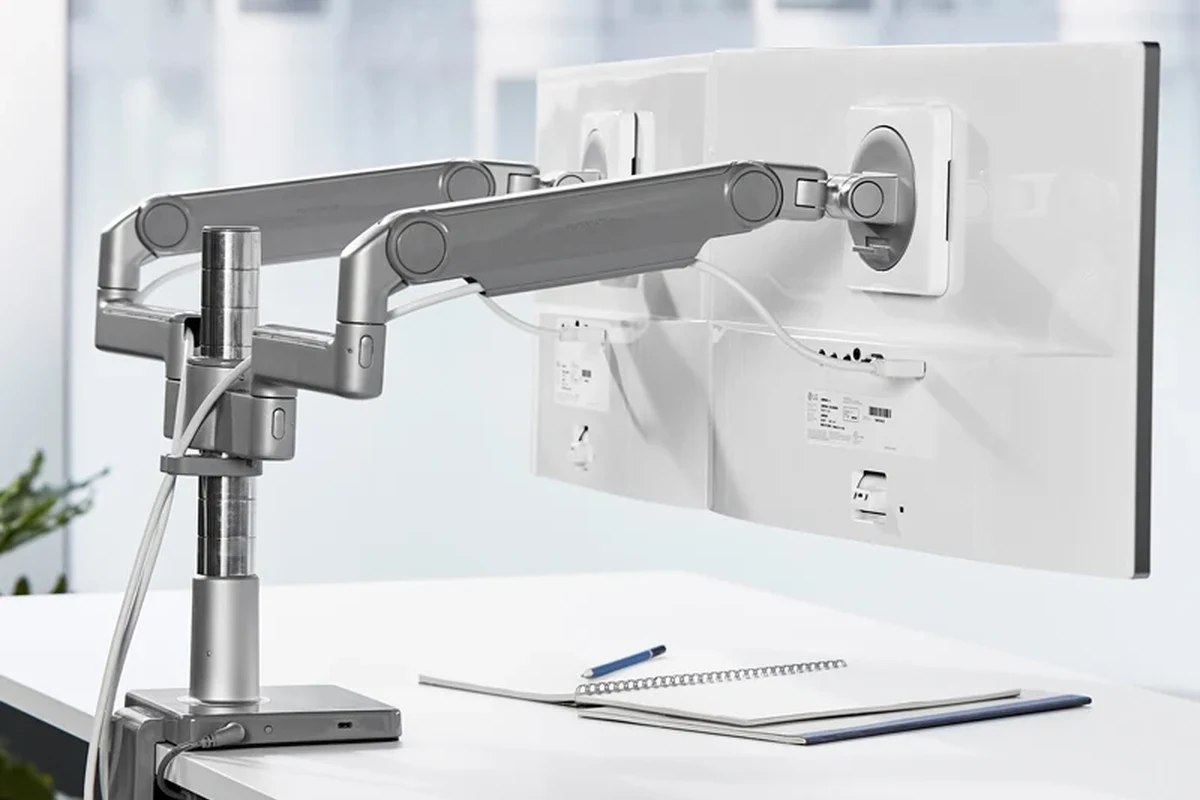
Tools You’ll Need for Installation
Gathering the right tools before installation can streamline the process. Most monitor arms come with the necessary mounting hardware, but you may need additional tools for a secure setup.
Adjustable wrench or pliers for tightening screws. Phillips and flathead screwdrivers for different types of screws. A level to ensure your monitor is aligned correctly.
Common Installation Mistakes to Avoid
Common Installation Mistakes to Avoid works best when the device, connection method, power needs, and required app or permission are confirmed first. For how to know what monitor arm to buy, follow the setup in order and verify each step before changing another setting. For related safety context, compare this with how to setup smart plug with alexa.
- Not checking VESA compatibility can lead to installation issues.
- Ignoring weight limits can result in instability.
- Failing to secure all screws properly can compromise safety.
Use official support or warranty guidance if the issue involves overheating, power, damaged cables, unstable mounting, privacy risk, data loss, or repeated failures.
Safety and Stability Considerations
Safety is paramount when using a monitor arm, especially if you have multiple monitors. Ensuring that the arm is securely mounted and that weight limits are adhered to will prevent accidents.
Regularly check for any loose screws or bolts. Ensure the arm is mounted on a stable surface. Do not exceed the weight limit specified by the manufacturer. This also connects with how to setup kasa smart plug if you want to avoid a similar setup or buying mistake.
Maintenance Tips for Your Monitor Arm
Regular maintenance of your monitor arm can prolong its lifespan and ensure optimal performance. Periodically inspect for loose screws or wear, and tighten or replace as needed to maintain stability. Keeping your monitor arm in good condition not only enhances functionality but also contributes to a tidy workspace.
Cleaning and Care
Cleaning and Care should protect the device surface, ports, vents, sensors, and powered parts while removing normal dust or buildup. For how to know what monitor arm to buy, follow the manufacturer cleaning guidance and disconnect power whenever the instructions require it.
- Wipe down the arm with a soft, damp cloth regularly.
- Avoid harsh chemicals that could damage the finish.
- Check for any signs of wear or damage during cleaning.
Signs You Might Need a Replacement
Over time, monitor arms may wear out or become damaged. Recognizing the signs of potential failure can prevent accidents and ensure a safe workspace.
Visible wear or damage to the arm structure. Difficulty adjusting the arm due to stiffness. Increased wobbling or instability during use. For related context, you may also want to read how to setup amazon smart plug.
This guide on how to know what monitor arm to buy is written for general digital-information education. For specifications, compatibility, prices, availability, firmware/software versions, warranty terms, recalls, privacy settings, or safety limits, confirm details with the official manual, manufacturer page, retailer listing, warranty document, or current support notice before acting.
Choosing the Right Monitor Arm for Your Needs
When determining how to know what monitor arm to buy, consider your workspace needs, monitor specifications, and ergonomics. Selecting the right model can enhance productivity, maintain comfort, and organize your workspace effectively. By understanding your requirements and the available options, you can make a more informed choice. This connects closely with how to setup smart plug if you want to compare the topic in more detail.
Final Words
The main takeaway for how to know what monitor arm to buy is to match the advice to the exact device, connection method, and daily use case. Use safe setup steps, verify model-specific details, and contact official support when power, heat, privacy, stability, or warranty concerns remain.
💡 Sufiya Begom's Setup Advice: Check VESA support, screen weight, desk thickness, eye level, cable clearance, and stability before buying or mounting any monitor accessory.
Frequently Asked Questions
Questions about Monitor Arm often depend on the exact model, connection method, software support, and daily use case. Similar products can behave differently even when they look alike or share a category name. Check current manufacturer documentation whenever compatibility, safety, privacy, firmware, or warranty details affect the answer.
Start with intended use, fit, verified specifications, safety instructions, care needs, and important limitations.
Start with the exact Monitor Arm model, connection method, compatibility requirements, and the specific result you need. Current manufacturer documentation is the safest place to confirm details that vary by model.
Check the operating system, ports or wireless standard, power requirements, app or driver support, and any ecosystem limitations that apply to the exact setup.
A common mistake is treating every Monitor Arm product or setup as interchangeable. Similar-looking models can differ in ports, software support, power needs, dimensions, or privacy controls.
Use the cleaning, ventilation, inspection, charging, storage, and update guidance that applies to the product type. Disconnect power first whenever the manufacturer instructions require it.
Stop and seek official support when the problem involves overheating, damaged power hardware, unstable mounting, repeated failures, data loss, or a privacy concern you cannot resolve safely.

Sufiya Begom is a Passionate Digital Innovator and the Visionary Founder of the Dynamic Platform, Digital Pro Info. With a deep-rooted enthusiasm for digital technologies, Sufiya has built a comprehensive space that offers valuable insights into digital products, reviews, guides, software, and sales, empowering individuals to make informed decisions in the ever-evolving digital landscape.